
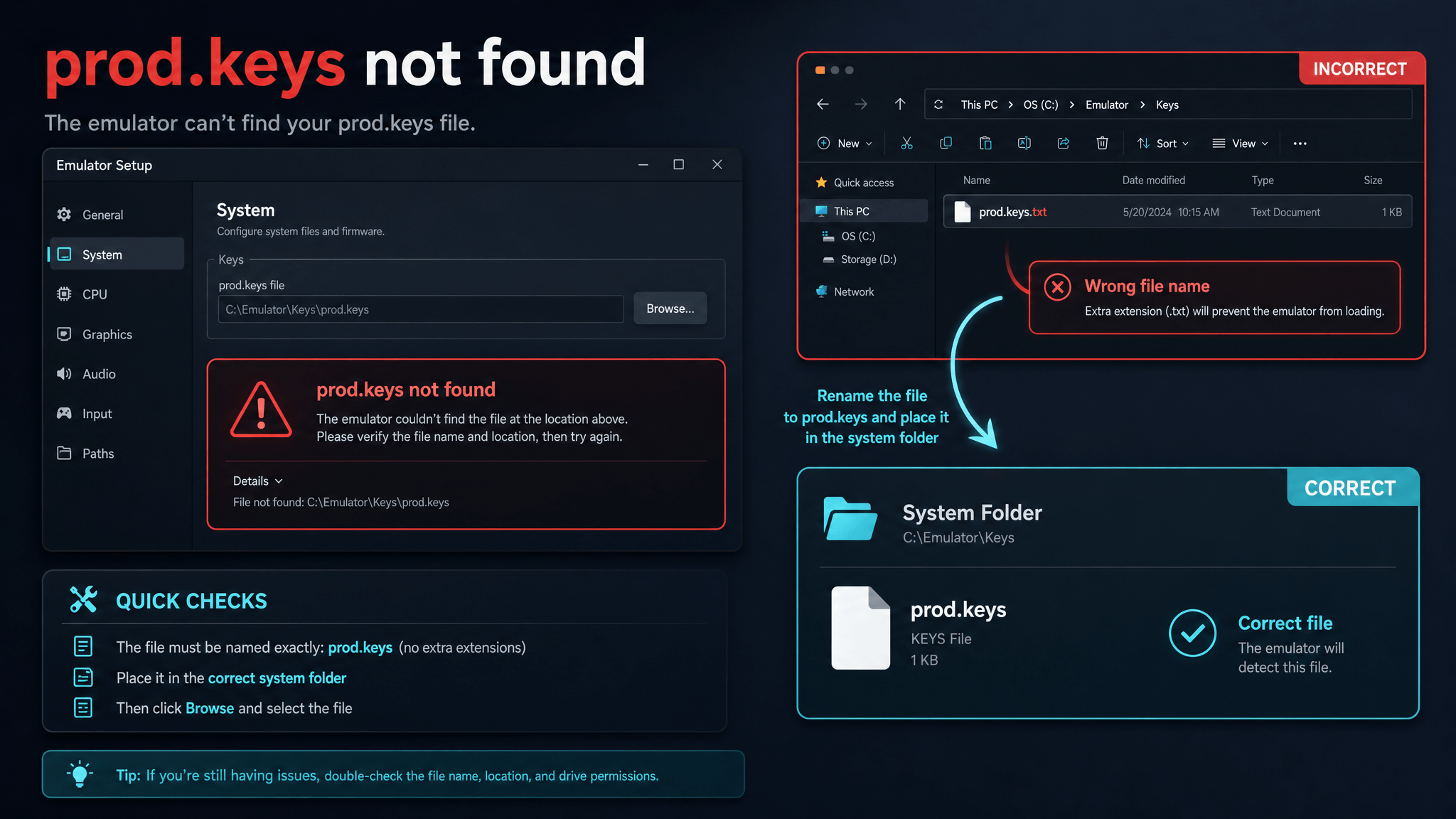
What This Error Means
The prod.keys not found error usually means the emulator started correctly but could not read the required keys file from the expected user data directory. In most cases the keys file is missing, named incorrectly, placed in the wrong folder, blocked by permissions, or paired with an incompatible firmware/content set.
The key detail is "expected user data directory." Most users do not fail because they lack a random path from a tutorial. They fail because the emulator they are actually running is reading a different folder from the one they edited. That happens with portable builds, Flatpak packages, Steam Deck frontends, Android scoped storage, and old emulator installs left behind on the same computer.
Before downloading anything or replacing multiple files, identify which of these situations you are in:
| Situation | What it usually means |
|---|---|
| Error appears before firmware install | Emulator cannot detect prod.keys at all |
| Firmware installs, then games fail | Keys may be detected; check firmware/content/cache next |
| Error appears only on Android | Import flow or scoped storage may be the issue |
| Error appears after moving to a new build | You may be using a different user folder |
| Error changed to NCA/header/black screen | Stop moving keys; troubleshoot the new error |
This page focuses on legal, private setup. SwitchFirmware does not provide prod.keys downloads and does not recommend third-party key packs.
Fix 1: Open the Emulator Data Folder
Do not guess the path first. Open the emulator and use its menu option for opening the user folder, app data folder, system folder, or keys folder. Portable builds, forked builds, and app-store-style Android packages may use different directories from old tutorials.
Place the file exactly where the emulator expects it. The filename should usually be prod.keys, not prod.keys.txt, prod (1).keys, or Prod.Keys.
For Ryujinx-style desktop setups, the safest path is the folder opened from the emulator itself. Community documentation such as RetroDECK also documents alternate paths for packaged environments, including Steam Deck and Flatpak-style layouts. That is why copying a Windows path from an old tutorial often fails on Linux, EmuDeck, RetroDECK, or Android.
If the emulator has no obvious folder button, check its settings, help menu, or documentation for "user folder," "app data," "system folder," "keys folder," or "open data directory." The exact label changes by emulator and platform, but the principle is the same: use the directory the running app controls.
Fix 1A: Confirm You Are Editing the Active Install
Many users have more than one emulator install:
- an older Ryujinx folder from a previous setup;
- a portable build in Downloads;
- a Flatpak or package-manager install;
- a Steam Deck frontend-managed install;
- a fork with a similar UI but different data directory.
Place a harmless test note such as folder-check.txt in the folder you believe is active, then use the emulator's folder-opening command again. If the note is not there, you edited the wrong directory.
Fix 2: Check File Visibility and Extension
On Windows, enable file extensions in File Explorer before renaming anything. A common mistake is creating prod.keys.txt while the .txt extension is hidden. On macOS and Linux, confirm the file name from a terminal or the file inspector.
A correct-looking filename is not enough if extensions are hidden. Check for these common variants:
| Wrong filename | Why it fails |
|---|---|
prod.keys.txt |
Text extension is still present |
prod (1).keys |
Browser or file manager duplicated the file |
Prod.Keys |
Case usually should not matter everywhere, but exact lowercase avoids ambiguity |
prod.keys.backup |
Backup file is not the active filename |
title.keys |
Different file; not a replacement for prod.keys |
During troubleshooting, keep only one active prod.keys file in the target folder. Store backups elsewhere with dates in the backup folder name, not in the active filename.
Fix 3: Match Keys, Firmware, and Content
If the file is found but games still fail with NCA, header, or decryption errors, treat it as a version combination problem. Record these three values:
- Emulator name and build date.
- Firmware version installed in the emulator.
- Source and date of your own keys dump.
Change one variable at a time. Replacing keys, firmware, GPU drivers, and emulator builds in the same attempt makes the failure harder to isolate.
Do not mix a new firmware archive with an old keys dump and a stale cache unless you are deliberately testing that combination. Many "keys not found" reports are really "keys detected, but not compatible with what I am trying to load" reports. The error shown by the emulator can be less precise than the underlying problem.
Use a version snapshot:
| Field | What to write down |
|---|---|
| Emulator | Name, build date, and platform |
| Keys | Your private dump date and source device note |
| Firmware | Version installed inside the emulator |
| Content | Base game/update/DLC version you are testing |
| Cache | Whether old shader/config/cache data is still present |
| Result | Exact error after restart |
If you cannot fill out this table, do not replace more files yet. Missing records are often the reason troubleshooting becomes random.
Fix 4: Reset Permissions
Cloud-sync folders, Android scoped storage, and copied files from another user account can cause read problems. Move the file into the emulator-managed directory, then restart the emulator. On Android, use the import flow if the app provides one.
On desktop, avoid testing from a synced Desktop or Documents folder while OneDrive or iCloud is actively managing files. On Linux and Steam Deck, sandboxed packages may not see files outside their allowed storage. On Android, a file manager may show a file that the emulator app cannot read.
If the emulator provides an import button, use it. Import flows usually request the right operating-system permission, while manual copying can leave the file invisible to the app.
Fix 5: Rebuild the User Folder Carefully
If the emulator still cannot detect keys, create a backup of the current user folder, let the emulator generate a fresh folder, and then import only prod.keys and firmware again. Do not copy old caches or old config files until the clean setup launches successfully.
Use this only after checking folder, filename, and permissions. Rebuilding too early can erase useful evidence. The safe order is:
- Close the emulator.
- Rename the current user folder as a dated backup.
- Start the emulator once so it creates a fresh folder.
- Place or import only
prod.keys. - Restart the emulator.
- Install firmware through the supported workflow.
- Test one known-good title.
If the clean setup works, copy old saves or configuration back slowly and only after you understand where they belong.
Platform-Specific Checks
Windows
Enable file extensions in File Explorer and check that the file is not secretly named prod.keys.txt. Also avoid syncing the emulator user folder through OneDrive while testing.
macOS
Check the application support folder opened by the emulator. If you moved files through AirDrop or cloud storage, confirm macOS did not quarantine or rename the file.
Linux and Steam Deck
Flatpak, AppImage, EmuDeck, and RetroDECK builds can use different user directories. Use the app's folder command or the frontend's documented BIOS/keys path instead of assuming ~/.config is always correct.
Android
Scoped storage can block manual file moves. Prefer the emulator's import flow, then fully close and reopen the app.
What Not to Do
- Do not download random
prod.keysfiles from search results. - Do not rename
title.keystoprod.keys. - Do not paste key contents into a public support thread.
- Do not change firmware, emulator build, GPU driver, and cache all at once.
- Do not assume a Windows tutorial path applies to Steam Deck, Flatpak, or Android.
- Do not keep retrying the keys folder after the error changes to a different symptom.
The fastest fix is usually the boring one: correct folder, exact filename, app restart, then firmware install.
Prevention Checklist
- Keep a dated backup of your own keys dump.
- Store firmware and keys version notes together.
- Use the emulator's own folder-opening command.
- Avoid public cloud sharing for sensitive files.
- Re-test after each emulator update.
Fast Diagnostic Checklist
Work through this in order:
- Did you open the user folder from the emulator you are actually launching?
- Is the file inside the expected
systemor keys folder for that emulator? - Is the filename exactly
prod.keys? - Is the emulator fully closed and reopened?
- Does the error still say missing keys, or did it change?
- If it changed, are you now dealing with firmware, NCA, cache, or driver behavior?
If you answer these carefully, most prod.keys not found cases become a folder or filename issue rather than a mystery.
FAQ
Can I fix this by downloading prod.keys from another site?
No. SwitchFirmware does not recommend or link to third-party keys downloads. The reliable and compliant route is to use your own legally prepared keys and keep them private.
Is this the same as title.keys?
No. prod.keys and title.keys are different files. If the emulator asks for prod.keys, do not rename title.keys as a workaround. Read the prod.keys vs title.keys guide before changing files.
Where should Ryujinx users start?
Start with the Ryujinx user folder opened from the app menu, then place prod.keys in the system folder. The detailed walkthrough is here: where to put prod.keys in Ryujinx.
What if I am using Eden on Android?
Use Eden's import flow instead of manually moving files through Android storage. See Eden prod.keys Android setup.
Why does the emulator still say missing keys after I copied the file?
Most likely the emulator is reading a different folder, the filename has a hidden extension, or the app cannot access the file because of permissions. Reopen the active user folder from the emulator and verify the exact filename.
If the error changed after you fixed the path, that is useful signal. Move on to firmware mismatch troubleshooting, NCA bad header troubleshooting, or the Tinfoil console log errors guide instead of moving prod.keys again.
Should I reinstall firmware before fixing keys?
No. Fix key detection first. Firmware install workflows often depend on keys being detected. After keys are detected, install firmware through the emulator's supported flow.
Can old cache cause a keys error?
Old cache usually causes launch, graphics, or compatibility symptoms after keys are detected. It is not the first thing to clear for a true "not found" error. Clear cache only after folder and filename checks are complete.
Related Guides
这个错误是什么意思
prod.keys not found 通常表示模拟器已经正常启动,但无法从预期的用户数据目录读取所需 keys 文件。大多数情况下,问题来自 keys 文件缺失、文件名错误、放错目录、权限阻挡,或与不兼容的 firmware/内容组合使用。
修复 1:打开模拟器数据目录
不要一开始就猜路径。先打开模拟器,使用菜单里的打开用户目录、应用数据目录、system 目录或 keys 目录选项。便携版、分支构建和 Android 应用商店式包名可能使用不同于旧教程的目录。
把文件放到模拟器明确要求的位置。文件名通常应为 prod.keys,而不是 prod.keys.txt、prod (1).keys 或 Prod.Keys。
对于 Ryujinx 风格桌面端配置,最稳妥的路径是从模拟器自身打开的目录。RetroDECK 等社区文档也会记录封装环境下的替代路径,例如 Steam Deck 和 Flatpak 风格目录。所以从旧教程复制 Windows 路径,经常无法适用于 Linux、EmuDeck、RetroDECK 或 Android。
修复 2:检查文件可见性和扩展名
Windows 上先在文件资源管理器中启用文件扩展名显示,再重命名文件。常见错误是在隐藏 .txt 扩展名时创建了 prod.keys.txt。macOS 和 Linux 上可以通过终端或文件信息面板确认文件名。
修复 3:匹配 Keys、Firmware 和内容
如果文件能被找到,但游戏仍然出现 NCA、header 或解密错误,把它当作版本组合问题处理。记录这三项:
- 模拟器名称和构建日期。
- 模拟器内安装的 firmware 版本。
- 你自己的 keys 转储来源和日期。
一次只改变一个变量。同时替换 keys、firmware、GPU 驱动和模拟器构建,会让失败原因更难隔离。
不要随意把新 firmware 压缩包、旧 keys 转储和旧缓存混在一起,除非你就是在测试这个组合。很多 “keys not found” 报告本质上是 “keys 已检测到,但和当前要加载的内容不兼容”。模拟器显示的错误可能没有底层原因那么精确。
修复 4:重置权限
云同步目录、Android 分区存储,以及从其他用户账户复制来的文件,都可能造成读取问题。把文件移动到模拟器管理的目录中,然后重启模拟器。Android 上如果应用提供导入流程,优先使用导入流程。
修复 5:谨慎重建用户目录
如果模拟器仍然检测不到 keys,先备份当前用户目录,让模拟器生成一个全新目录,然后只重新导入 prod.keys 和 firmware。在干净配置成功启动前,不要复制旧缓存或旧配置文件。
按平台检查
Windows
在文件资源管理器中启用扩展名显示,确认文件没有被隐藏成 prod.keys.txt。测试时也尽量避免让 OneDrive 同步模拟器用户目录。
macOS
检查模拟器打开的 Application Support 目录。如果文件通过 AirDrop 或云盘移动过,确认 macOS 没有隔离或重命名文件。
Linux 和 Steam Deck
Flatpak、AppImage、EmuDeck 和 RetroDECK 构建可能使用不同用户目录。使用应用自带的打开目录命令,或前端文档里的 BIOS/keys 路径,而不是默认假设一定在 ~/.config。
Android
分区存储可能阻止手动移动文件。优先使用模拟器内置导入流程,然后完全关闭并重新打开应用。
预防清单
- 保留你自己 keys 转储的带日期备份。
- 把 firmware 和 keys 版本记录放在一起。
- 使用模拟器自带的打开目录命令。
- 避免把敏感文件放入公开云共享。
- 每次模拟器更新后重新测试。
FAQ
可以通过从其他网站下载 prod.keys 来修复吗?
不建议。SwitchFirmware 不推荐也不链接第三方 keys 下载。更可靠且合规的方式,是使用你自己合法准备的 keys,并保持私密。
这和 title.keys 是一回事吗?
不是。prod.keys 和 title.keys 是不同文件。如果模拟器要求 prod.keys,不要把 title.keys 重命名来绕过提示。改文件前先看 prod.keys 与 title.keys 指南。
Ryujinx 用户应该从哪里开始?
从 Ryujinx 应用菜单打开用户目录,然后把 prod.keys 放到 system 文件夹。详细步骤见:Ryujinx 的 prod.keys 应该放在哪里。
如果我用 Android 版 Eden 呢?
优先使用 Eden 的导入流程,不要手动穿过 Android 存储权限移动文件。查看 Eden Android prod.keys 设置。
为什么我修正路径后报错变成了别的?
这通常说明 prod.keys 已经被检测到了,问题正在转向另一个层面。接下来应该看 Firmware mismatch 排错、NCA bad header 排错 或 Tinfoil console log 错误,而不是继续反复移动 prod.keys。
相关指南
Last updated: 2026-05-12