
Read This First
If DBI shows a warning that required keys are missing, the usual fix is simple: create your own private key files, then copy the generated .keys files into the SD card's /switch/ folder and reopen DBI.
This guide is written like a picture walkthrough. Follow the screenshots in order. Do not skip from the first warning straight to firmware updates. DBI is usually not asking for a new firmware file. It is asking for key files in a place DBI can read.
SwitchFirmware does not provide prod.keys, title.keys, shared key packs, or third-party key download links. Use only files you are legally entitled to prepare from your own hardware and software. Keep key files private. Do not upload them, paste them into support chats, or show their contents in screenshots.
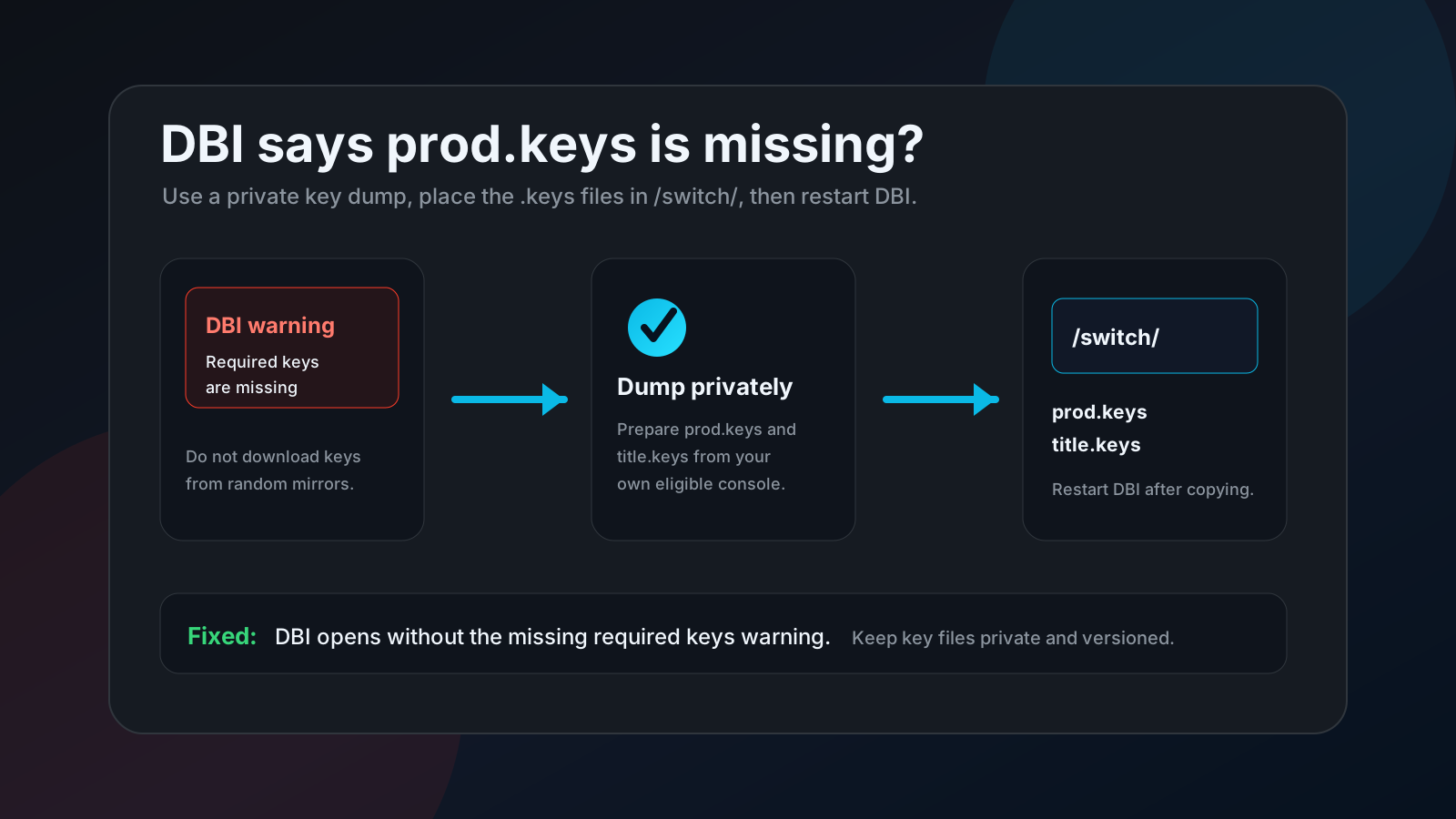
What You Are Going to Do
There are two parts:
- Extract your own keys with your existing payload workflow.
- Copy the two
.keysfiles into the SD card's/switch/folder so DBI can see them.
The final result should be this: when you open DBI again, the missing required keys warning is gone.
Before you start, prepare:
- your Switch SD card setup;
- DBI installed in your homebrew menu;
- a USB cable if you will use DBI's MTP responder;
- a computer for copying files;
- enough time to follow the steps slowly.
Use this small note so you remember what changed:
Date:
DBI version:
Firmware version:
Atmosphere / CFW version:
Key dump date:
Source folder: atmosphere/automatic_backups/dumps
Destination folder: /switch/
Result after reopening DBI:
Part 1: Extract Your Keys
Step 1: Boot to the payload menu
Restart your Switch into the boot or payload menu. In the source workflow, the button to choose is Payloads.
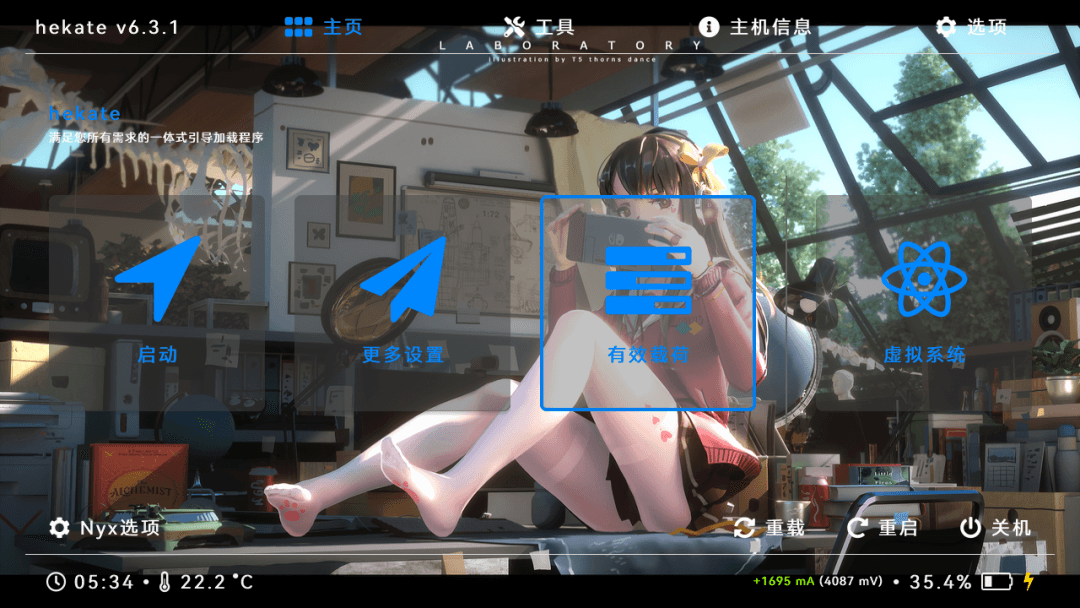
If your menu looks slightly different, look for the option that opens the payload list. Do not change unrelated boot settings.
Step 2: Choose Lockpick_RCM.bin
In the payload list, choose Lockpick_RCM.bin.
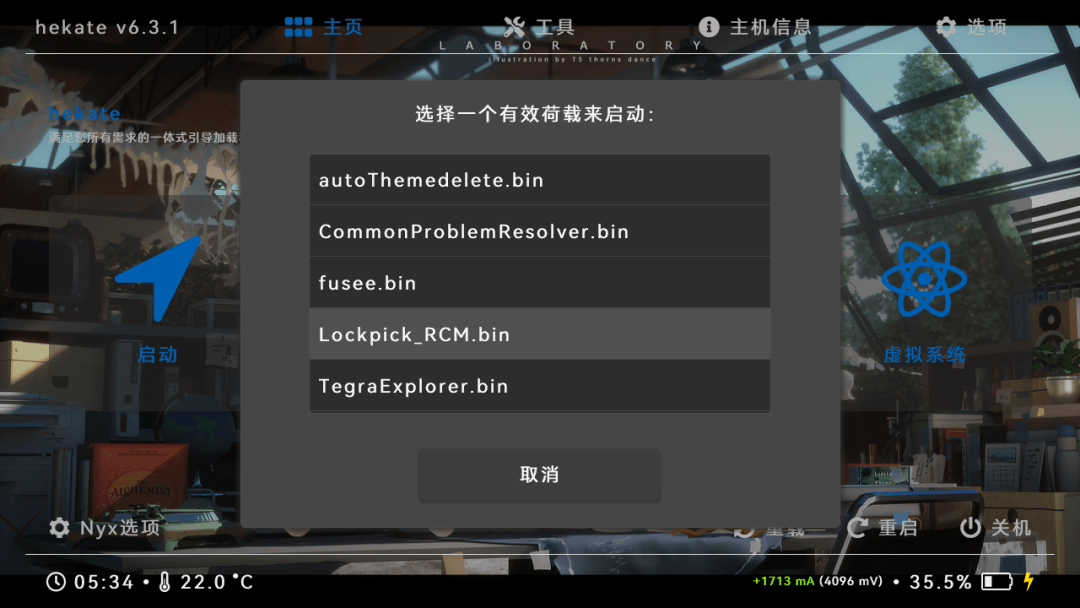
This is the step that starts the key dumping workflow in the source article. Use it only for your own eligible hardware and keep the output private.
Step 3: Stay on the default extraction screen
After the payload starts, you will enter the key extraction screen. The source workflow says you do not need to choose anything special here; the default option is enough.
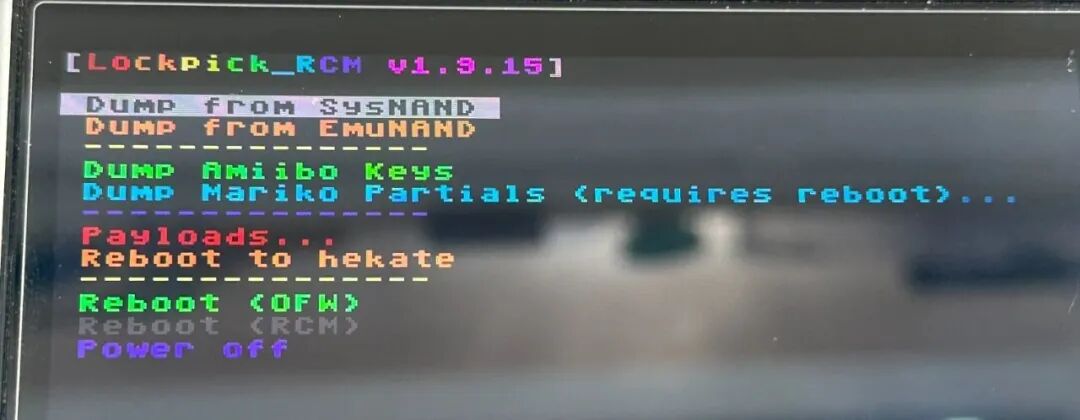
At this point, do not press random buttons. You only need the normal dump process.
Step 4: Press the Power button once and wait
Press the Power button once. Then wait for the progress bar or extraction process to finish.
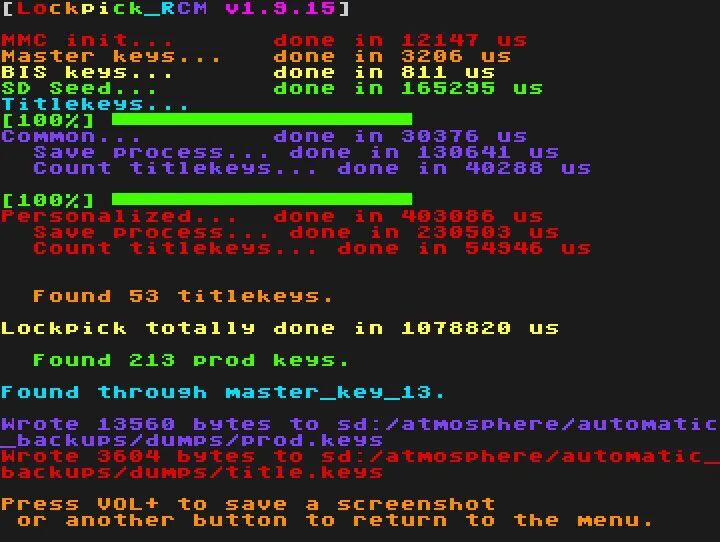
Do not power off during the process. Wait until the tool tells you the step is complete or asks for the next button.
Step 5: When prompted, press Volume Up
When you see the prompt shown in the screenshot, press the Volume Up (+) button once.
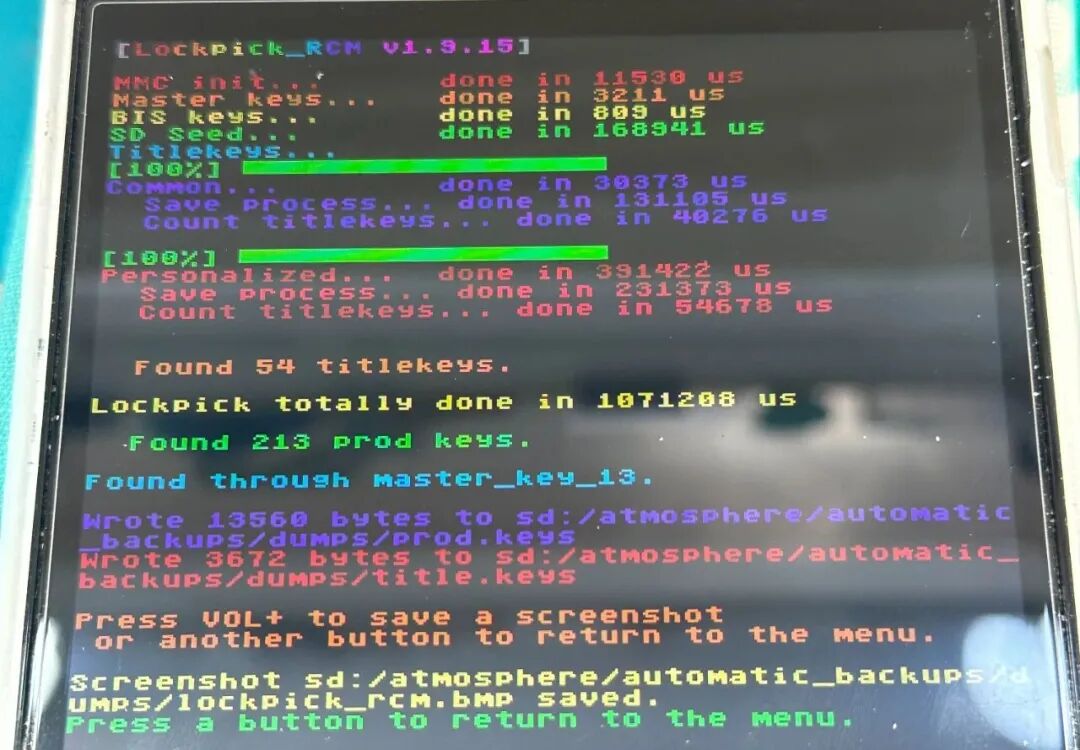
This confirms the save step in the source workflow.
Step 6: Look for the green success message
You want to see a green message like Press a button to return to the menu. That means the files were saved successfully.
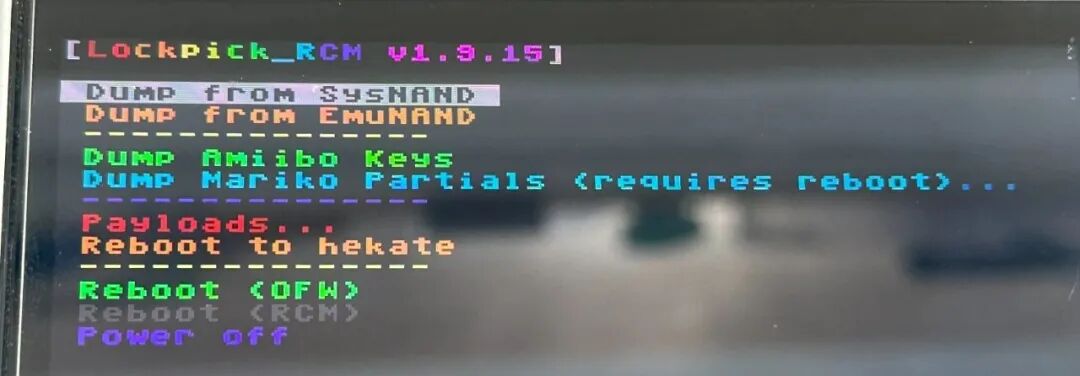
If you do not see the success message, restart and try the extraction again. Do not create empty .keys files by hand. DBI needs real key files created by your own workflow.
Step 7: Press Power once to return to the main menu
After the save succeeds, press the Power button once to return to the main menu.
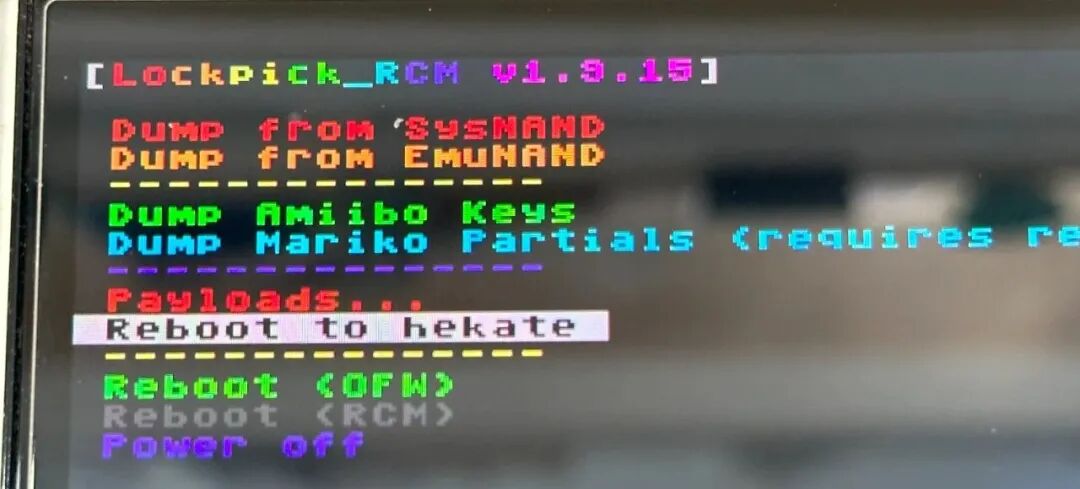
Step 8: Choose Reboot to hekate
Press Volume Down (-) to move down the menu. Select Reboot to hekate, then press Power once.
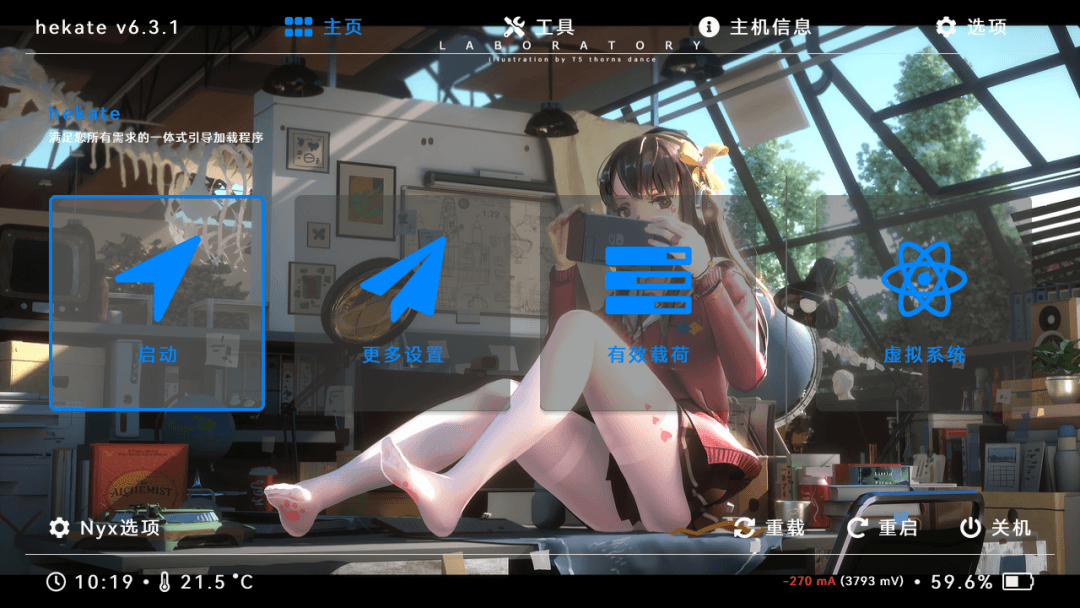
You should return to the boot screen. From there, boot back into your usual CFW/homebrew environment.
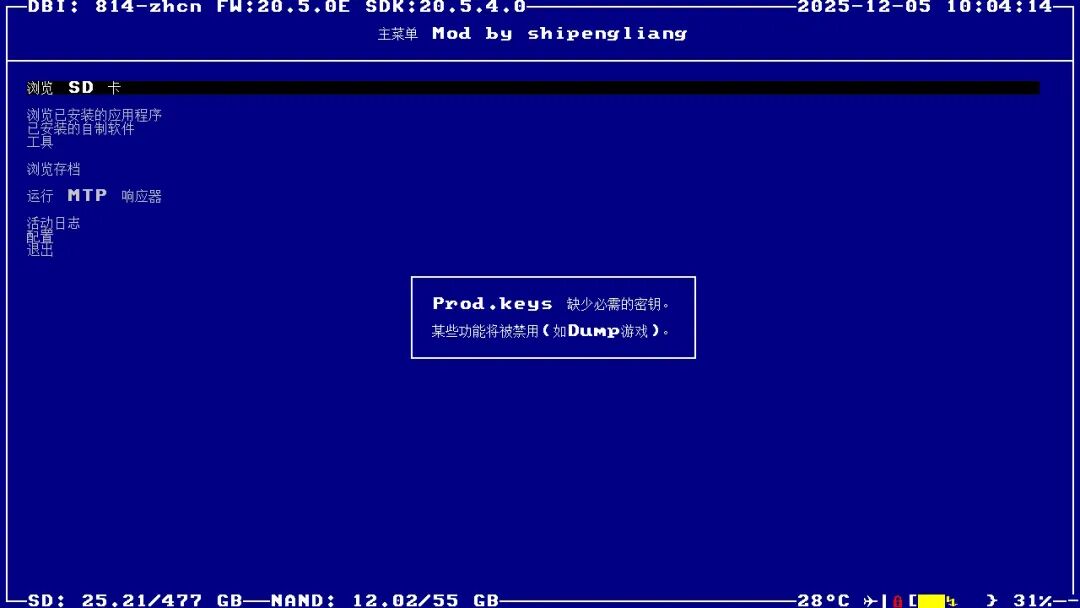
Part 1 is finished. Your key files should now exist on the SD card, usually under an Atmosphere backup dump folder.
Part 2: Copy the Keys for DBI
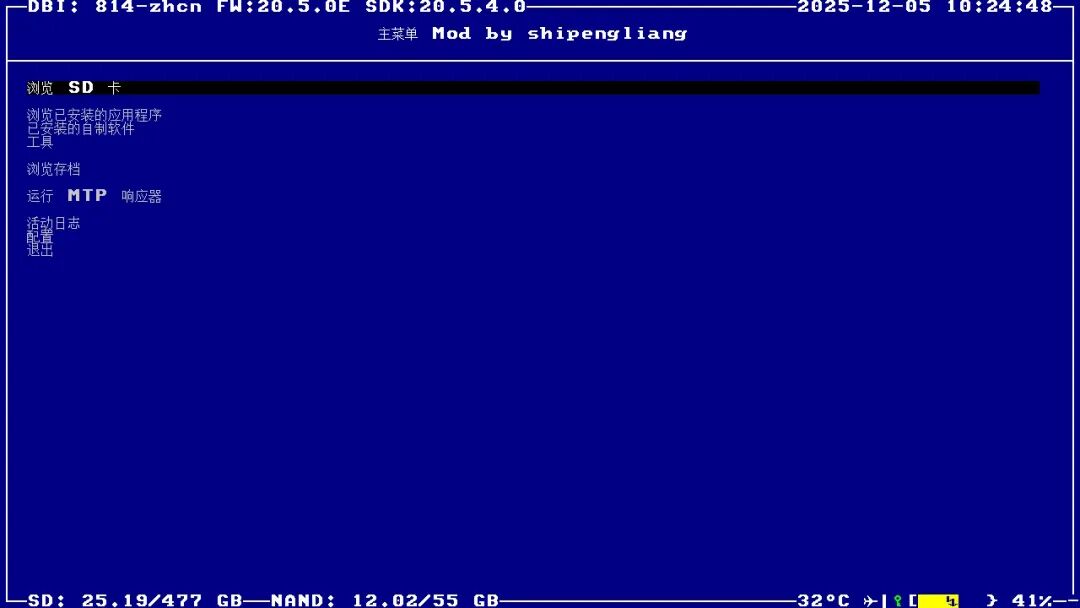
Step 9: Open DBI and run the MTP responder
Open DBI. It may still show the missing keys warning at this point. That is expected. Ignore the warning for now and choose Run MTP responder.
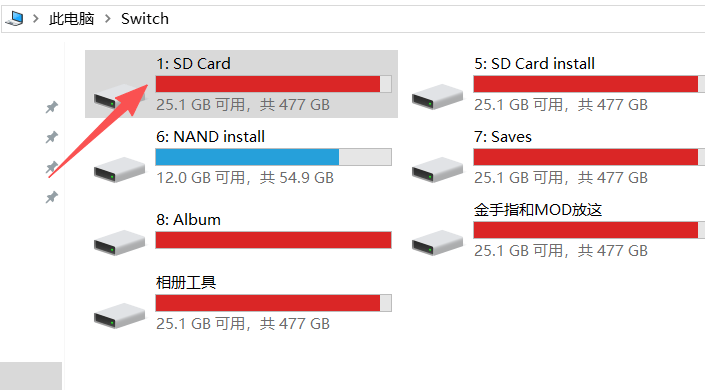
MTP lets your computer browse the SD card through DBI. If your computer does not detect it, try another USB cable or port before changing files.
Step 10: On your computer, open the SD card drive
Connect the Switch to your computer. Open the SD card drive exposed by DBI. In the source screenshot, it appears as the first SD card volume.
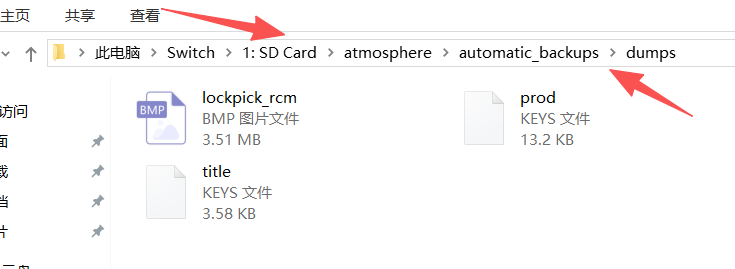
Step 11: Find the two .keys files
Open this folder:
atmosphere/automatic_backups/dumps
Look for the two .keys files. In most workflows, these are the private key files DBI needs.
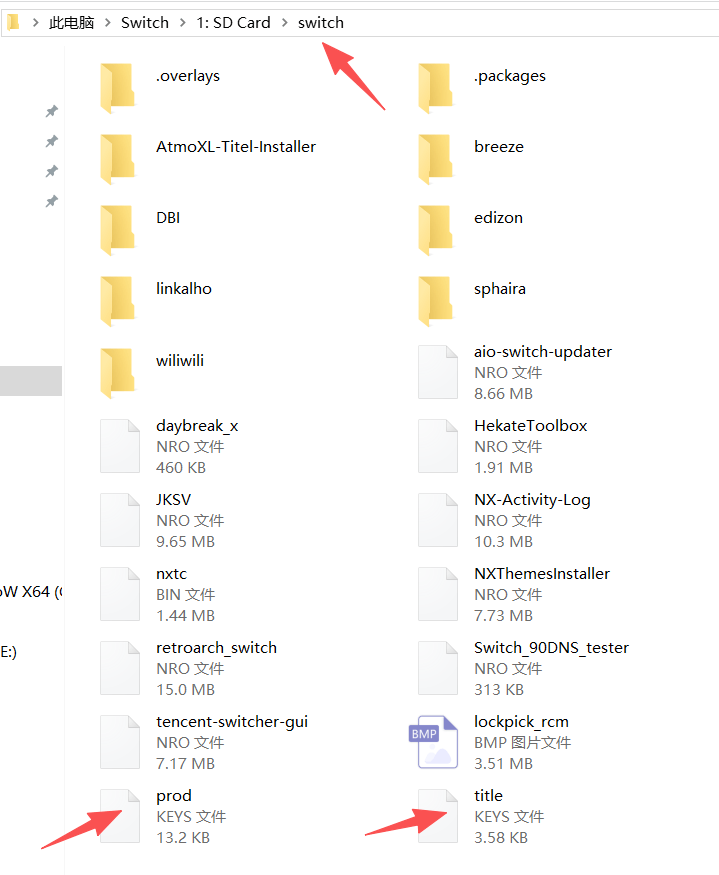
Do not rename unrelated files to .keys. Do not use files from strangers. If the folder is empty, go back to Part 1 and repeat the dump.
Step 12: Copy both .keys files into /switch/
Now copy the two .keys files into the SD card's switch folder:
/switch/
Before closing the window, check these three things:
- The files are directly inside
/switch/. - The filenames still end in
.keys. - The files are not empty.
If you want to keep a backup, copy the files first. Do not move your only copy and lose your dump record.
Step 13: Exit DBI and open it again
Close DBI, then open DBI again. The missing required keys warning should disappear.
If the warning is gone, stop moving key files. You fixed the key detection step. If a different error appears later, that is a new problem category: file integrity, firmware requirement, SD card health, USB transfer, or CFW/app compatibility.
Quick Checklist
Use this checklist if you get lost:
| Step | What to check |
|---|---|
| 1 | You selected the payload menu |
| 2 | You selected Lockpick_RCM.bin |
| 3 | The dump showed a green success message |
| 4 | You returned to hekate and booted back to CFW |
| 5 | You opened DBI and started MTP responder |
| 6 | You found atmosphere/automatic_backups/dumps |
| 7 | You copied both .keys files to /switch/ |
| 8 | You reopened DBI |
If DBI still warns about missing required keys after all eight checks, the most likely causes are wrong folder, failed copy, failed dump, or DBI not being restarted.
Common Mistakes
- Copying the files only to
atmosphere/automatic_backups/dumpsand never into/switch/. - Putting the files inside a nearby folder such as
/switch/DBI/when the workflow expects/switch/. - Forgetting to reopen DBI after copying.
- Using a bad USB cable and assuming the keys are wrong.
- Creating empty
.keysfiles manually. - Renaming
title.keystoprod.keysor treating every key file as interchangeable. - Sharing key contents in screenshots.
- Updating firmware before fixing the missing keys warning.
A changed error message is often progress. If DBI no longer says required keys are missing, do not repeat the same keys step. Move to the new error category.
DBI Missing Keys vs. Emulator prod.keys Errors
DBI on console and emulators on desktop/Android both mention keys, but the folder is different.
| Environment | First place to check |
|---|---|
| DBI homebrew on Switch | SD card /switch/ folder |
| Ryujinx desktop | Ryujinx user/system folder opened from the app |
| Eden Android | In-app import flow or app-managed storage |
| Yuzu-style forks | The fork's user data keys folder |
If you are fixing DBI, follow this DBI/SD card guide. If you are fixing Ryujinx, read where to put prod.keys in Ryujinx. If you are fixing Android, start with Eden prod.keys Android setup.
Privacy and Safety Notes
Key files are private. Do not upload them to cloud shares, GitHub issues, public Discord messages, support forums, or screenshots. If you ask for help, share only:
- DBI version;
- firmware version;
- Atmosphere/CFW version;
- whether the two
.keysfiles exist in/switch/; - the exact warning text;
- whether the warning changed after reopening DBI.
Do not share the key contents or the key files themselves.
FAQ
Does DBI need prod.keys?
DBI can require key material for certain workflows. If it warns that required keys are missing, place your private .keys files where DBI expects them. In this workflow, that means the SD card /switch/ folder.
Do I copy one file or two files?
The source workflow copies two .keys files from atmosphere/automatic_backups/dumps into /switch/. Copy the generated files as files. Do not treat them as interchangeable or rename unrelated files.
Can I fix this by downloading prod.keys?
No. SwitchFirmware does not recommend third-party key downloads. Use your own legally prepared private files and keep them local.
Why does DBI show another error after this fix?
That usually means DBI can now read the keys and has moved to a later layer. Check file integrity, firmware requirement, SD card health, USB transfer, or CFW/app compatibility.
Is this the same as Ryujinx prod.keys setup?
No. The idea is related, but the path is different. DBI reads from the Switch SD/homebrew environment. Ryujinx reads from its emulator user folder.
Related Guides
先看这一段
如果 DBI 提示缺少必要密钥,通常的修复方法很简单:先从你有权使用的主机环境中准备自己的私有 key 文件,然后把生成的两个 .keys 文件复制到 SD 卡的 /switch/ 文件夹,最后重新打开 DBI。
这篇教程按图片一步一步走。你不需要一上来更新 firmware,也不需要重装 DBI。DBI 多数时候不是在要新的 firmware,而是在说:它没有在能读取的位置看到需要的 key 文件。
SwitchFirmware 不提供 prod.keys、title.keys、共享 key 包或第三方 key 下载链接。请只使用你有权准备的私有文件,并且不要上传、公开分享或截图展示 key 内容。
你接下来要做什么
整个流程分两部分:
- 提取你自己的 keys。
- 把两个
.keys文件复制到/switch/文件夹,让 DBI 能看到它们。
最终结果是:再次打开 DBI 时,缺少必要密钥的提示消失。
开始前准备:
- 你的 Switch SD 卡环境;
- 已安装的 DBI;
- 如果用 MTP,需要一根稳定 USB 线;
- 一台电脑,用来复制文件;
- 几分钟时间,慢慢照图操作。
建议先做个小记录:
日期:
DBI 版本:
Firmware 版本:
Atmosphere / CFW 版本:
Keys 转储日期:
来源文件夹:atmosphere/automatic_backups/dumps
目标文件夹:/switch/
重新打开 DBI 后结果:
第一部分:提取 keys
第 1 步:进入 payload 菜单
重启 Switch,进入引导或 payload 菜单。源教程里需要点击的是 有效载荷 / Payloads。
如果你的界面不完全一样,就找能打开 payload 列表的选项。不要改其他无关设置。
第 2 步:选择 Lockpick_RCM.bin
在 payload 列表里,选择 Lockpick_RCM.bin。
这一步会进入源教程里的密钥提取流程。请只用于你自己的合规硬件,并把生成文件保持私密。
第 3 步:进入提取界面,保持默认即可
payload 启动后,会进入提取界面。源教程里这里不用额外选择,默认即可。
这时不要乱按其他按钮,只需要正常执行提取。
第 4 步:按一次电源键,等待进度完成
按一下 电源键,然后等待进度条或提取过程走完。
过程中不要断电,等工具提示下一步。
第 5 步:出现提示时,按音量上键
看到截图中的提示后,按一下 音量上 +。
这一步是在确认保存。
第 6 步:看到绿色成功提示
如果看到绿色的 Press a button to return to the menu,就表示保存成功。
如果没有看到成功提示,请重启后重新尝试提取。不要自己创建空的 .keys 文件,DBI 需要真实生成的 key 文件。
第 7 步:按一次电源键,回到主菜单
保存成功后,再按一次 电源键,回到主菜单。
第 8 步:选择 Reboot to hekate
按 音量下 - 往下移动,选择 Reboot to hekate,再按一次 电源键。
接着会回到引导界面。从这里启动回你平时使用的 CFW/homebrew 环境。
第一部分完成。现在 key 文件应该已经在 SD 卡里,通常位于 Atmosphere 的自动备份目录。
第二部分:把 keys 放到 DBI 能读取的位置
第 9 步:打开 DBI,运行 MTP 响应器
打开 DBI。此时它可能还是会提示缺少密钥,先不用管。选择 运行 MTP 响应器 / Run MTP responder。
MTP 可以让电脑通过 DBI 浏览 SD 卡。如果电脑没反应,优先换 USB 线或 USB 口,不要马上怀疑 keys 错了。
第 10 步:电脑上打开 SD 卡盘
把 Switch 连接电脑,打开 DBI 暴露出来的 SD 卡盘。源截图里是 SD 卡一号盘。
第 11 步:找到两个 .keys 文件
进入这个文件夹:
atmosphere/automatic_backups/dumps
在里面找到两个 .keys 文件。很多情况下它们就是 DBI 需要读取的私有 key 文件。
不要把无关文件改名成 .keys。不要使用别人给的 key 文件。如果这个文件夹是空的,请回到第一部分重新提取。
第 12 步:把两个 .keys 文件复制到 /switch/
现在把这两个 .keys 文件复制到 SD 卡的 switch 文件夹:
/switch/
关闭窗口前检查三件事:
- 文件直接在
/switch/里面。 - 文件名仍然以
.keys结尾。 - 文件不是空文件。
如果想留备份,请用“复制”,不要把唯一副本移动走。
第 13 步:退出 DBI,再重新打开
关闭 DBI,再重新打开 DBI。缺少必要密钥的提示应该会消失。
如果提示消失,就不要继续移动 key 文件了。你已经修复了 key detection 这一层。如果后面出现另一个错误,那就是新的问题类别:文件完整性、firmware 要求、SD 卡、USB 传输或 CFW/app 兼容性。
快速检查表
如果你操作到一半迷路了,按这个表检查:
| 步骤 | 检查内容 |
|---|---|
| 1 | 已进入 payload 菜单 |
| 2 | 已选择 Lockpick_RCM.bin |
| 3 | 提取后看到绿色成功提示 |
| 4 | 已回到 hekate 并启动回 CFW |
| 5 | 已打开 DBI 并运行 MTP responder |
| 6 | 已找到 atmosphere/automatic_backups/dumps |
| 7 | 已把两个 .keys 文件复制到 /switch/ |
| 8 | 已重新打开 DBI |
如果八项都做了,DBI 仍然提示缺少 required keys,最常见原因是:复制到了错误文件夹、复制没有完成、提取失败,或 DBI 没有真正重启。
常见错误
- 只把文件留在
atmosphere/automatic_backups/dumps,没有复制到/switch/。 - 把文件放进
/switch/DBI/,但当前流程需要/switch/。 - 复制后忘记重新打开 DBI。
- USB 线不稳定,却以为 keys 错了。
- 自己创建空的
.keys文件。 - 把
title.keys改名成prod.keys,或认为所有 key 文件都能互相替代。 - 分享暴露 key 内容的截图。
- 在修复缺 keys 提示前就更新 firmware。
错误文本变化通常是进展。如果 DBI 不再提示 required keys 缺失,就不要重复这一步,而是去看新的错误类别。
DBI 缺 keys 与模拟器 prod.keys 错误的区别
DBI 和桌面/Android 模拟器都会提到 keys,但路径不同。
| 环境 | 优先检查位置 |
|---|---|
| Switch 上的 DBI homebrew | SD 卡 /switch/ 文件夹 |
| Ryujinx 桌面端 | 从 Ryujinx 打开的 user/system 文件夹 |
| Eden Android | App 内导入流程或应用管理目录 |
| Yuzu 风格分支 | 对应分支的用户数据 keys 文件夹 |
修 DBI 时看这篇 DBI/SD 卡教程。修 Ryujinx 时看 Ryujinx 的 prod.keys 应该放在哪里。修 Android 时看 Eden prod.keys Android setup。
隐私和安全提醒
Key 文件是私密文件。不要上传到网盘、GitHub issue、Discord、公开论坛或截图里。需要求助时,只提供:
- DBI 版本;
- firmware 版本;
- Atmosphere/CFW 版本;
/switch/下是否有两个.keys文件;- 准确提示文本;
- 重新打开 DBI 后提示是否变化。
不要分享 key 内容,也不要上传 key 文件本身。
FAQ
DBI 需要 prod.keys 吗?
某些 DBI 工作流需要 key material。如果提示 required keys 缺失,请把自己的私有 .keys 文件放到 DBI 期望的位置。本文流程里就是 SD 卡 /switch/ 文件夹。
复制一个文件还是两个文件?
源流程是把 atmosphere/automatic_backups/dumps 里的两个 .keys 文件复制到 /switch/。按文件复制,不要把它们互相改名,也不要把无关文件改成 .keys。
可以下载别人的 prod.keys 修复吗?
不建议。SwitchFirmware 不推荐第三方 key 下载。请使用你自己合法准备的私有文件,并保持本地私密。
提示消失后又出现别的错误怎么办?
这通常说明 DBI 已经能读取 keys,并进入了下一层。继续检查文件完整性、firmware 要求、SD 卡健康、USB 传输或 CFW/app 兼容性。
这和 Ryujinx prod.keys 设置一样吗?
不一样。概念相关,但路径不同。DBI 读取 Switch SD/homebrew 环境,Ryujinx 读取模拟器用户目录。
相关指南
Last updated: 2026-05-16