
What Eden Needs on Android
Eden on Android needs a valid emulator configuration, your own private prod.keys, compatible firmware, and a device capable of running the selected game. The keys file is only one part of the setup. If a game fails after keys import, the cause may be firmware, content integrity, GPU driver support, or thermal limits.
SwitchFirmware does not provide keys. Use files you are legally entitled to prepare from your own hardware and keep them private.
Android setup is different from desktop setup because the app may not be allowed to read every folder you can see in a file manager. A file can exist on the phone and still be invisible to Eden if it was placed in a restricted location, left inside a messaging app cache, or selected through a picker that does not grant lasting access.
Before importing, prepare three things:
| Item | Why it matters |
|---|---|
prod.keys |
Private key file prepared from your own eligible setup |
| Firmware archive or folder | System files installed after keys are detected |
| Version note | Eden build, firmware version, device model, and test result |
Do not start by changing graphics drivers or performance settings. Key import and firmware install should be boring and repeatable before performance tuning begins.
Use Eden's Import Flow First
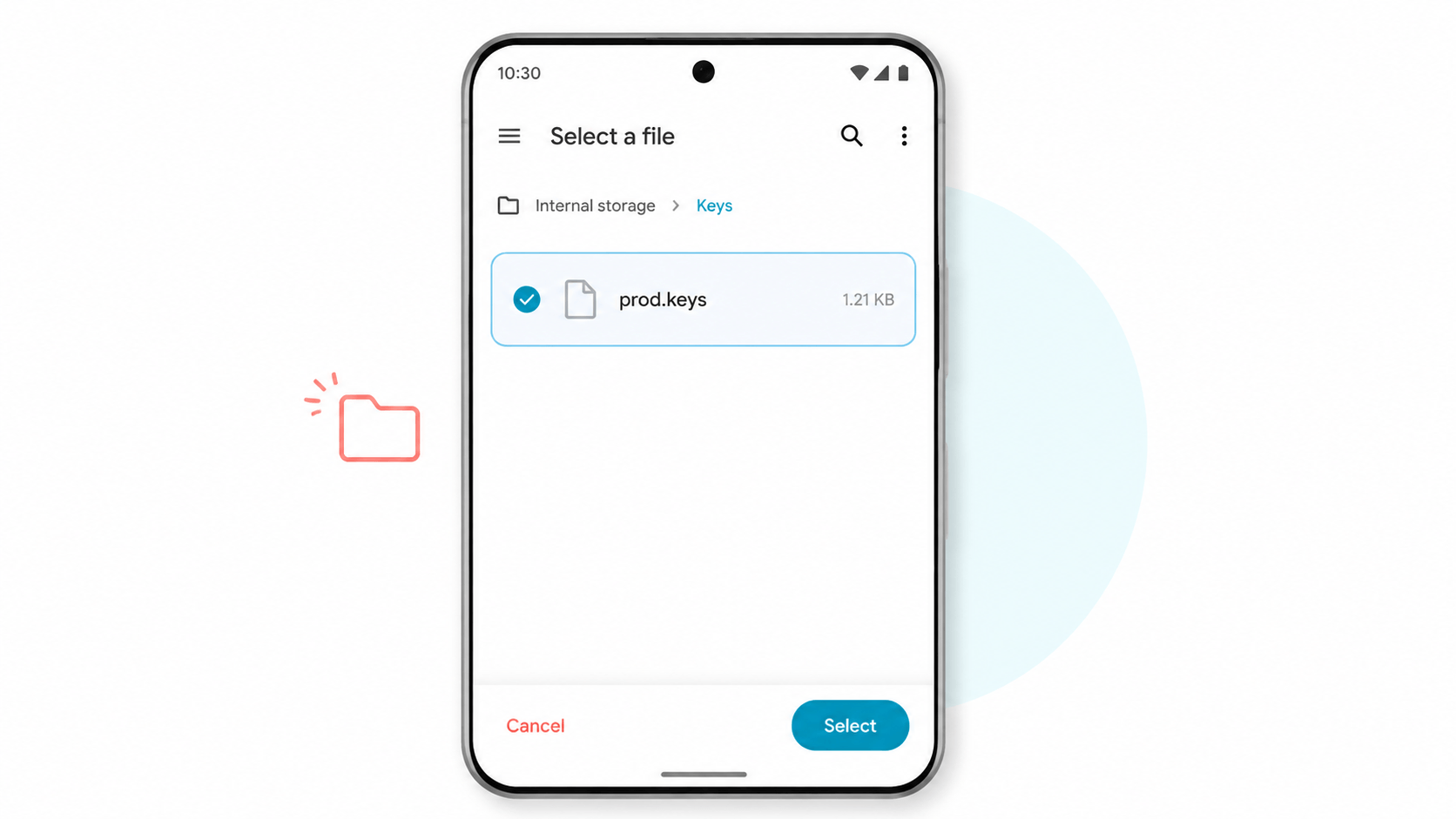
Android scoped storage can make manual file moves unreliable. If Eden provides an import option for keys, use that first:
- Save your private
prod.keyssomewhere you can select with Android's system file picker. - Open Eden settings or the setup wizard.
- Choose the keys import option.
- Select
prod.keys. - Fully close Eden and reopen it.
Avoid moving the file through random cleaner apps, cloud sync folders, or file managers that Eden cannot access later.
If the import flow succeeds, write down the result and restart the app. Android may keep the old process alive in the background, so a normal back gesture is not always enough. Use the app switcher or app info screen to fully close Eden before testing again.
Where to Put the File Before Import
Use a simple local folder that Android's system picker can access. Downloads is usually safer than a cloud drive, messaging app attachment folder, or temporary cache. Avoid filenames with extra spaces, duplicate suffixes, or translated characters while troubleshooting.
Good temporary import setup:
| Choice | Reason |
|---|---|
| Local Downloads folder | Easy for the system picker to see |
Exact filename prod.keys |
Avoids hidden extension problems |
| One active copy | Prevents selecting an old duplicate |
| App import flow | Grants Eden the expected access |
After the file is imported, do not keep repeatedly moving it with third-party file managers. If the app has copied it into its own storage, manual moves can create confusion about which copy is active.
Confirm the Filename
The filename should be exactly prod.keys. Watch for:
prod.keys.txtprod (1).keysProd.Keys- A compressed archive that was never extracted
If Android hides extensions, inspect the file details in a reliable file manager before importing.
If the file came from a desktop computer, check the filename on the desktop before transferring it. Many Android file managers simplify names visually. Windows users should enable file extensions and confirm the file is not actually prod.keys.txt.
Install Firmware After Keys
After importing keys, install firmware through Eden's supported firmware import flow. Use the firmware format the app asks for, and keep a note of the firmware version you installed.
If Eden reports missing system files, black screens, or NCA errors after keys import, compare these three values:
- Eden build version.
- Installed firmware version.
- Date/version of your own keys dump.
Install firmware only after Eden can detect keys. If firmware import fails before keys are detected, the firmware archive may not be the first problem. Confirm the import result, restart the app, then return to firmware installation.
Device Reality Check
Even with correct keys and firmware, Android Switch emulation depends heavily on hardware. A recent flagship Snapdragon device and an older mid-range phone are not comparable just because they run the same APK. Thermal throttling, GPU driver behavior, RAM pressure, and storage speed can all produce symptoms that look like setup errors.
Track these fields:
| Field | Example |
|---|---|
| Device model | Phone or tablet model |
| Chipset | Snapdragon / MediaTek / other |
| Android version | Major OS version |
| Eden build | Release or build date |
| Firmware | Installed firmware version |
| Driver | Stock or custom driver note |
| Result | Launches, black screen, crash, NCA, missing keys |
This helps separate "Eden cannot find my keys" from "my device cannot run this title reliably."
Android-Specific Problems
The Import Picker Cannot See the File
Move the file to a simple local folder such as Downloads, then use Android's system picker. Do not import from a temporary messaging app cache.
Eden Still Says Keys Are Missing
Restart the app completely. If Android keeps Eden in memory, force close it from app info and reopen it. Then import again from the system picker.
Games Launch to Black Screen
That is not always a keys path issue. Re-check firmware, try default graphics settings, and test whether the problem affects one title or every title.
NCA Bad Header Appears
Treat this as a file integrity or version matching problem. Verify the content file, firmware, and keys combination before changing performance settings.
Troubleshooting Order
Use this order instead of changing everything at once:
- Confirm
prod.keysimports successfully. - Fully restart Eden.
- Install firmware through Eden's supported flow.
- Test one known-good title at default settings.
- If only one title fails, verify that title's files and update/DLC state.
- If every title fails, compare firmware, keys dump date, and Eden build.
- Only after launch is reliable, tune drivers, resolution, and performance settings.
FAQ
Should I manually copy prod.keys into Android app data?
Use Eden's import flow first. Manual copying can fail because of scoped storage and app permissions.
Why can my file manager see the file but Eden cannot?
The file manager and Eden may have different storage permissions. Selecting the file through Android's system picker is usually more reliable than placing it manually.
Do I install firmware before or after keys?
After keys. Firmware installation workflows commonly depend on key detection.
Is a black screen always a keys problem?
No. Once keys are detected, black screens can involve firmware, content, GPU drivers, emulator build, device performance, or thermal throttling.
Related Guides
Android 上 Eden 需要什么
Android 版 Eden 需要有效的模拟器配置、你自己的私有 prod.keys、兼容 firmware,以及能运行目标游戏的设备。keys 文件只是设置的一部分。如果导入 keys 后游戏仍失败,原因可能是 firmware、内容完整性、GPU 驱动支持或散热限制。
SwitchFirmware 不提供 keys。请使用你有权从自己硬件中准备的文件,并保持私密。
优先使用 Eden 的导入流程
Android 分区存储会让手动移动文件变得不可靠。如果 Eden 提供 keys 导入选项,优先使用它:
- 把私有
prod.keys保存到 Android 系统文件选择器可以访问的位置。 - 打开 Eden 设置或设置向导。
- 选择 keys 导入选项。
- 选择
prod.keys。 - 完全关闭 Eden,然后重新打开。
避免通过清理软件、云同步文件夹,或 Eden 后续无法访问的文件管理器路径移动文件。
确认文件名
文件名应精确为 prod.keys。注意这些错误:
prod.keys.txtprod (1).keysProd.Keys- 压缩包没有解压就直接导入
如果 Android 隐藏扩展名,请在可靠的文件管理器中查看文件详情后再导入。
Keys 之后再安装 Firmware
导入 keys 后,通过 Eden 支持的 firmware 导入流程安装 firmware。使用应用要求的 firmware 格式,并记录安装的 firmware 版本。
如果 Eden 在导入 keys 后提示缺少系统文件、黑屏或 NCA 错误,请对比这三项:
- Eden 构建版本。
- 已安装 firmware 版本。
- 你自己的 keys 转储日期/版本。
Android 特有问题
导入选择器看不到文件
把文件移动到 Downloads 这类简单本地文件夹,然后使用 Android 系统选择器。不要从临时聊天软件缓存中导入。
Eden 仍提示 Keys 缺失
完全重启应用。如果 Android 让 Eden 留在后台,从应用信息里强制停止后重新打开。然后再通过系统选择器导入一次。
游戏启动后黑屏
这不一定是 keys 路径问题。重新检查 firmware,使用默认图形设置,并确认问题是只影响一个标题还是所有标题。
出现 NCA Bad Header
把它当作文件完整性或版本匹配问题处理。先验证内容文件、firmware 和 keys 组合,再调整性能设置。
相关指南
Last updated: 2026-05-12