
Start With Device Reality
Android Switch emulation is limited by chipset, GPU driver quality, RAM, storage speed, thermal headroom, and emulator maturity. A setup that works on a recent flagship phone may fail on a mid-range device even with the same keys and firmware.
Recent Android-focused emulator projects such as Eden have made mobile workflows more practical, but they do not remove the hardware limits. Android Central's coverage of Eden highlights a common reality: Android support is a major reason people try newer forks, yet performance still depends heavily on device class and driver support.
Use this rough expectation before spending time tuning:
- Recent flagship Snapdragon devices: best chance for playable testing.
- Older flagship devices: useful for lighter titles and compatibility checks.
- Mid-range devices: expect strict limits, more heat, and more crashes.
- Low-end devices: better for learning the interface than for sustained gameplay.
This expectation check saves time. If a device is thermally limited or lacks stable GPU driver support, no amount of firmware replacement will make it behave like a desktop setup. Treat mobile emulation as a compatibility experiment first and a performance project second.
Setup Order
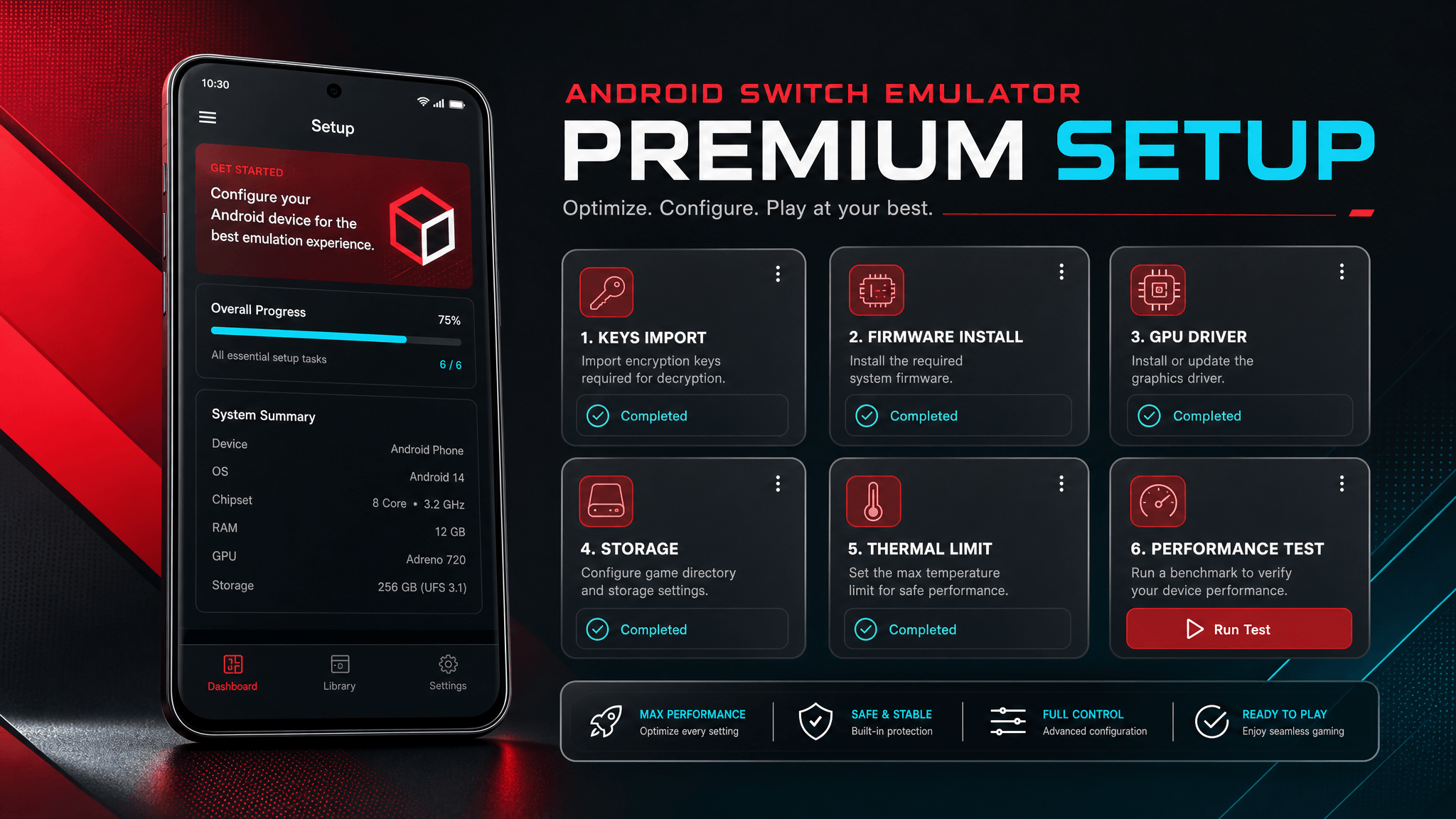
Use this sequence:
- Install the emulator from the source you trust.
- Import your own private
prod.keysthrough the app flow. - Install firmware through the app flow.
- Test one known-good title at default settings.
- Record device, Android version, emulator build, firmware, and result.
- Only then tune drivers, resolution, and performance options.
Changing performance settings before confirming files are detected makes troubleshooting harder.
Prepare Files Privately
Use only keys and content you are legally entitled to prepare from your own hardware and software. Keep prod.keys private and avoid storing it in shared folders. If your emulator has an import button, use it instead of manually moving files through Android's scoped storage restrictions.
Store temporary import files in a simple local folder such as Downloads. Avoid chat attachment folders, cloud-only files, cleaner-app folders, and temporary caches. The system file picker is usually more reliable than a third-party file manager because it grants the app access to the selected file.
Install Firmware
After importing keys, install firmware through the emulator's settings or setup wizard. If the app asks for a folder, choose the folder containing the extracted firmware files. If it asks for an archive, use the archive format the app explicitly supports.
Do not change storage locations while you are still testing. Android's scoped storage rules mean the same folder can behave differently depending on whether you selected it through the system picker, a third-party file manager, or the emulator import flow.
Driver and Performance Notes
If your emulator supports custom GPU drivers, change one driver at a time and record the result. A driver that improves one game can break another. Keep default settings as your baseline, then test driver changes only after the game launches.
Performance tuning should follow this order:
| Step | Why |
|---|---|
| Default settings | Establish whether setup works |
| Lower resolution | Reduces GPU load safely |
| Driver test | Can fix or break rendering |
| Frame limit | Reduces heat and throttling |
| Cache cleanup | Only after recording current behavior |
Tune Performance Conservatively
Start with default resolution and default GPU backend. Raise resolution only after the game launches reliably. If the phone gets hot quickly, reduce resolution, cap frame rate where possible, and avoid long test sessions while charging.
For first tests, avoid changing five settings at once. Use this order:
- Confirm keys and firmware import.
- Launch with default graphics settings.
- Try one driver change if the emulator supports custom drivers.
- Lower resolution before raising it.
- Record whether crashes happen at launch, loading screen, shader compilation, or gameplay.
This makes it easier to tell the difference between a bad file setup and a device performance limit.
Keep a Test Matrix
Record emulator build, Android version, chipset, GPU driver, firmware version, and game result. Mobile issues often look random until you compare them across this matrix.
Example:
| Field | Example |
|---|---|
| Device | Phone model |
| Chipset | Snapdragon / MediaTek / other |
| Android version | 15 |
| Emulator | Eden build/date |
| Firmware | 22.1.0 |
| Driver | Stock |
| Result | Launches / black screen / crash / NCA |
Common Problems
- Missing keys: use the app import flow and restart the emulator.
- Black screen: test default graphics settings and verify firmware.
- Crash on launch: try a different GPU driver if your device supports driver switching.
- Stutter: reduce resolution and clear only the relevant cache after recording the current result.
FAQ
Is Android setup the same as desktop setup?
No. Android adds scoped storage, device drivers, thermal limits, and app import flows. Use Android-specific instructions when available.
Should I start by changing GPU drivers?
No. First confirm keys, firmware, and default launch behavior. Driver tuning comes later.
Why does one game work and another fail?
Different games and updates can stress different system services, drivers, and performance limits. Test base game, update, and DLC separately when possible.
Can a mid-range phone run everything if firmware is correct?
No. Firmware correctness does not remove hardware limits.
Related Guides
先面对设备现实
Android Switch 模拟器受芯片、GPU 驱动质量、内存、存储速度、散热余量和模拟器成熟度影响。即使用相同 keys 和 firmware,在新旗舰手机上可用的配置,也可能在中端设备上失败。
Eden 这类更偏 Android 的模拟器项目让移动端工作流更可行,但并不会消除硬件限制。Android Central 对 Eden 的报道也提到,Android 支持是很多人尝试新分支的重要原因,但实际表现依然高度依赖设备级别和驱动支持。
调试前可以先按这个预期判断:
- 近年的旗舰 Snapdragon 设备:最有机会进行可玩性测试。
- 较旧旗舰设备:适合轻量游戏和兼容性验证。
- 中端设备:要预期更严格的限制、更明显发热和更多崩溃。
- 低端设备:更适合学习界面,而不是长时间游玩。
私密准备文件
只使用你有权从自己硬件和软件中准备的 keys 与内容。保持 prod.keys 私密,避免放在共享目录里。如果模拟器提供导入按钮,优先使用它,而不是手动绕过 Android 分区存储限制移动文件。
安装 Firmware
导入 keys 后,通过模拟器设置或设置向导安装 firmware。如果应用要求选择文件夹,选择包含已解压 firmware 文件的目录。如果要求选择压缩包,只使用应用明确支持的压缩格式。
在测试稳定前,不要频繁更换存储位置。Android 分区存储规则意味着,同一个文件夹通过系统选择器、第三方文件管理器或模拟器导入流程选择时,权限表现可能不同。
保守调优性能
先使用默认分辨率和默认 GPU backend。等游戏稳定启动后再提高分辨率。如果手机很快发热,降低分辨率、尽可能限制帧率,并避免充电时长时间测试。
首次测试时,不要一次更改五个设置。建议按这个顺序:
- 确认 keys 和 firmware 已导入。
- 用默认图形设置启动。
- 如果模拟器支持自定义驱动,再尝试一次驱动变更。
- 先降低分辨率,不要先提高。
- 记录崩溃发生在启动、加载画面、shader 编译还是实际游戏中。
这样更容易区分文件配置问题和设备性能上限。
维护测试矩阵
记录模拟器构建、Android 版本、芯片、GPU 驱动、firmware 版本和游戏结果。移动端问题看起来经常随机,但放进矩阵对比后会清晰很多。
常见问题
- Missing keys:使用应用导入流程,然后重启模拟器。
- 黑屏:测试默认图形设置并验证 firmware。
- 启动崩溃:如果设备支持驱动切换,尝试其他 GPU 驱动。
- 卡顿:降低分辨率,并在记录当前结果后只清理相关缓存。
相关指南
Last updated: 2026-05-12