
The Short Answer
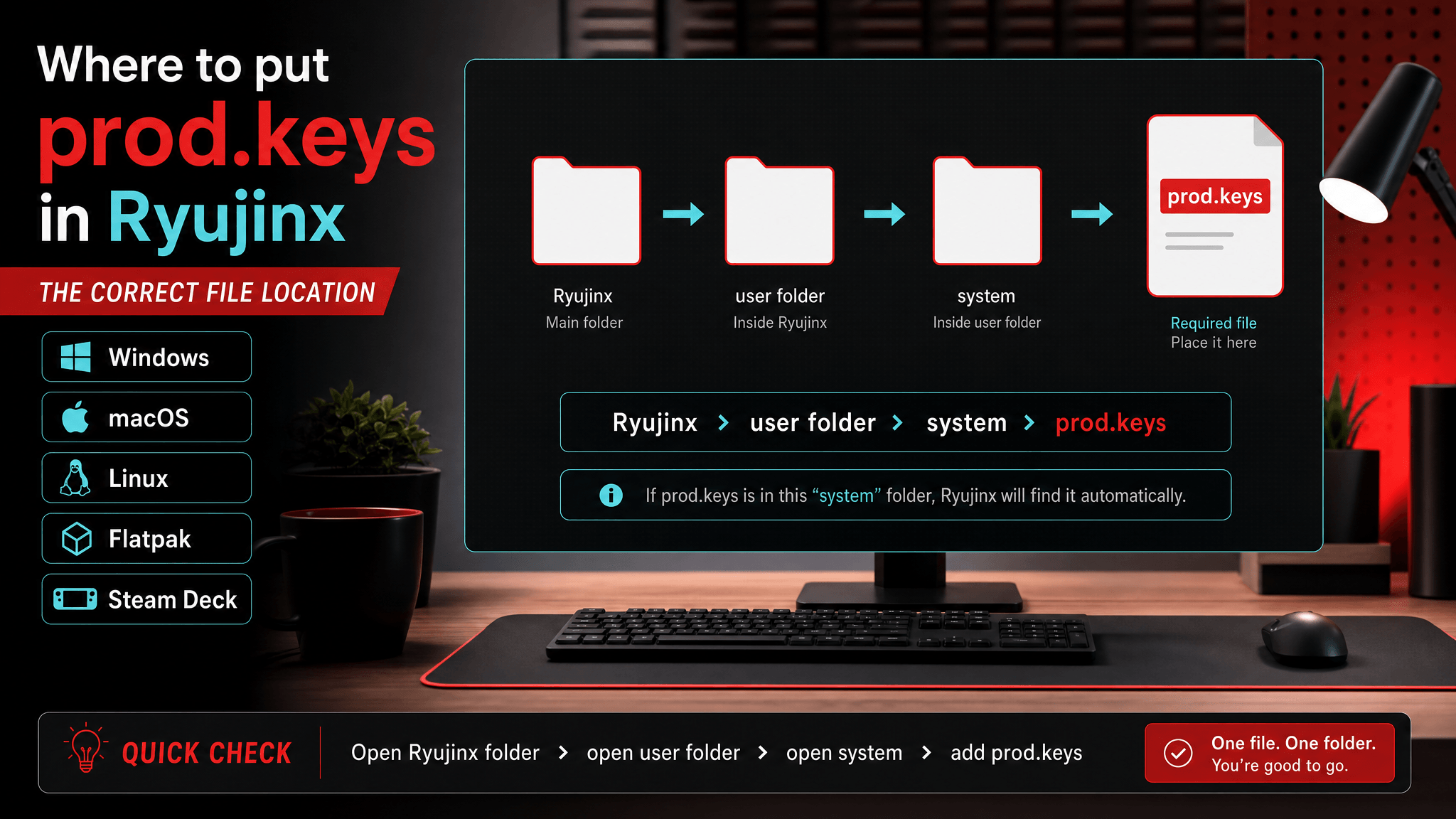
The safest way to find the Ryujinx prod.keys location is to open Ryujinx and use the app's own command for opening the user folder or system folder. Put prod.keys in the system folder inside that Ryujinx user directory.
Do not rely only on a path copied from an old tutorial. Portable builds, Flatpak packages, Steam Deck frontends, and forked builds can store the user directory somewhere else.
In other words, the correct answer is not "always use this one path." The correct answer is "use the active user folder for the Ryujinx build you are actually running." That difference is what prevents many frustrating setup loops.
If you have multiple Ryujinx builds installed, each build may point to a different user folder. A normal desktop install, a portable folder, a Flatpak package, and a Steam Deck frontend can all look like Ryujinx to the user while reading different data directories.
Common Ryujinx Keys Locations
Use this table as a starting point, then confirm from Ryujinx itself.
| Platform | Where to check |
|---|---|
| Windows | Ryujinx user folder opened from the app menu, then system |
| macOS | Ryujinx application support/user folder, then system |
| Linux | Ryujinx user config folder, then system |
| Flatpak | Flatpak app data folder, then Ryujinx system |
| Steam Deck | The folder used by your frontend or packaged emulator setup |
| Portable build | The portable user folder beside the emulator files |
The exact visible path can change by package. If Ryujinx has a menu item like "Open Ryujinx Folder" or "Open User Folder", trust that over a generic path list.
Why the App Menu Is Better Than a Path List
Path lists become stale because package formats change. A Windows tutorial may assume a standard app data location. A Linux tutorial may assume a normal config folder. A Steam Deck guide may assume EmuDeck or RetroDECK. A portable build may keep user data beside the executable. All of those can be valid in their own context, but only one is valid for the build you are launching today.
The app menu solves that by opening the directory Ryujinx is actually using. Once you are inside that folder, the important target is the system folder. That is where Ryujinx-style desktop setup normally expects prod.keys.
If the folder opened by Ryujinx does not match a guide you found online, do not force the guide path. Put the file in the folder opened by the app, then restart and test.
Step-by-Step Setup
- Start Ryujinx once so it creates its user folders.
- Open the user folder from the Ryujinx menu.
- Open the
systemfolder. - Place your own legally dumped
prod.keysfile there. - Confirm the filename is exactly
prod.keys. - Restart Ryujinx before testing.
SwitchFirmware does not host or distribute keys. Keep the file private and use keys you are legally entitled to dump from your own hardware.
Platform Notes
Windows
The most common Windows mistake is a hidden extension. File Explorer may show prod.keys while the real filename is prod.keys.txt. Open File Explorer settings and enable file name extensions before renaming. Also check that OneDrive is not syncing or restoring an older copy of the file while you test.
macOS
Use the folder opened from Ryujinx rather than manually searching Library paths. If a file was transferred through AirDrop, a cloud drive, or a browser download, confirm the final filename and permissions. macOS can also make Library folders less obvious in Finder, which is another reason the app menu is safer.
Linux
Normal Linux builds, AppImage-style builds, Flatpak packages, and distro packages may use different user folders. If Ryujinx is sandboxed, copying files into a normal ~/.config path may not affect the build you are running. Open the active folder from Ryujinx or from the package/frontend documentation.
Steam Deck, EmuDeck, and RetroDECK
Steam Deck setups often add another layer: a frontend manages emulator folders, BIOS/keys locations, or Flatpak data. If you followed a Windows guide and nothing changed, assume you are writing to the wrong directory. Use the frontend's documented file manager path or the emulator folder command.
Portable Builds
Portable builds are useful because they keep data near the emulator files, but they also make old global paths misleading. If you copied prod.keys into a system-wide Ryujinx folder and then launched a portable build, the portable build may not see it. Put the file in the portable build's own user/system folder.
Mistakes That Cause "prod.keys Not Found"
The most common mistake is a hidden extension. On Windows, the file may look like prod.keys while actually being named prod.keys.txt. Turn on file extensions in File Explorer before renaming it.
Other common issues:
- The file was placed in the firmware folder instead of the
systemfolder. - You used a normal desktop path while running a Flatpak or Steam Deck package.
- You copied keys into an old Ryujinx folder after moving to a portable build.
- Cloud sync changed permissions or duplicated the file name.
- Ryujinx was still open while you replaced the file.
Two subtler mistakes are worth checking:
- You have two Ryujinx installs and placed the file in the inactive one.
- You fixed the missing-keys problem, but a new error now points to firmware or content instead.
The second case is easy to misread. If the error changed, the file may now be detected. Continue troubleshooting from the new error instead of moving prod.keys again.
If Ryujinx Finds Keys but Games Still Fail
If the missing keys error is gone but you now see NCA, header, decryption, or firmware errors, do not keep moving the file around. At that point Ryujinx can probably read prod.keys; the next check is version matching.
Record your Ryujinx build, firmware version, keys dump date, and content update version. Then troubleshoot one variable at a time.
Use this table to decide what to check next:
| New symptom | Next check |
|---|---|
| Firmware install fails | Confirm keys are detected, then reinstall firmware through Ryujinx's supported flow |
| NCA bad header | Verify content file integrity and firmware/keys pairing |
| Black screen | Compare emulator build, graphics backend, cache, firmware, and content update |
| One title fails but others work | Focus on that title's content/update files |
| Everything fails after an update | Roll back firmware/build/cache as a version set |
Quick Verification Checklist
Before you leave the setup screen, confirm:
- The file is named exactly
prod.keys. - It is in the active Ryujinx user folder, inside
system. - Ryujinx was fully restarted after the file was placed.
- Firmware was installed after keys were detected.
- You tested one known-good title before changing other settings.
FAQ
Should prod.keys go in the firmware folder?
No. In Ryujinx-style desktop setup, the keys file belongs in the emulator user folder's system folder. Firmware is installed through the emulator's firmware installation workflow.
Why does Ryujinx still fail after the file is in the right folder?
The file may be detected, but the next part of the setup may be wrong. Check firmware version, content integrity, emulator build, and cache state.
Can I use the same path for Flatpak and non-Flatpak builds?
Do not assume that. Flatpak packages can use sandboxed application data paths. Use the folder opened by the running app or the frontend documentation.
Should I keep multiple backups in the same folder?
Keep backups elsewhere. During troubleshooting, keep only the active prod.keys file in the target folder to avoid naming mistakes.
Related Guides
简短答案
找到 Ryujinx prod.keys 位置最稳的方法,是打开 Ryujinx,使用应用自带的打开用户目录或 system 目录命令。把 prod.keys 放进该 Ryujinx 用户目录里的 system 文件夹。
不要只依赖旧教程复制来的路径。便携版、Flatpak 包、Steam Deck 前端和分支构建,都可能把用户目录放在不同位置。
常见 Ryujinx Keys 位置
先用这张表作为起点,再用 Ryujinx 自己确认。
| 平台 | 优先检查位置 |
|---|---|
| Windows | 从 Ryujinx 菜单打开用户目录,然后进入 system |
| macOS | Ryujinx application support/user 目录,然后进入 system |
| Linux | Ryujinx 用户配置目录,然后进入 system |
| Flatpak | Flatpak 应用数据目录中的 Ryujinx system |
| Steam Deck | 你的前端或封装模拟器实际使用的目录 |
| 便携版 | 模拟器文件旁边的 portable 用户目录 |
具体可见路径会随打包方式变化。如果 Ryujinx 有类似 “Open Ryujinx Folder” 或 “Open User Folder” 的菜单项,优先相信它,而不是通用路径表。
设置步骤
- 先启动一次 Ryujinx,让它创建用户目录。
- 从 Ryujinx 菜单打开用户目录。
- 打开
system文件夹。 - 放入你自己合法转储的
prod.keys文件。 - 确认文件名精确为
prod.keys。 - 重启 Ryujinx 后再测试。
SwitchFirmware 不托管也不分发 keys。请保持该文件私密,并只使用你有权从自己硬件中转储的 keys。
导致 “prod.keys Not Found” 的常见错误
最常见错误是隐藏扩展名。Windows 上文件看起来可能是 prod.keys,实际却叫 prod.keys.txt。重命名前先在文件资源管理器中打开扩展名显示。
其他常见问题:
- 文件被放进 firmware 文件夹,而不是
system文件夹。 - 使用 Flatpak 或 Steam Deck 包时,却按普通桌面路径放文件。
- 改用便携版后,仍把 keys 复制到旧 Ryujinx 目录。
- 云同步修改了权限或复制出重复文件名。
- 替换文件时 Ryujinx 仍在运行。
Ryujinx 能找到 Keys 但游戏仍失败怎么办
如果 missing keys 错误消失,但出现 NCA、header、decryption 或 firmware 错误,就不要继续反复移动文件。此时 Ryujinx 大概率已经能读取 prod.keys,下一步应该检查版本匹配。
记录 Ryujinx 构建、firmware 版本、keys 转储日期和内容更新版本。然后一次只排查一个变量。
相关指南
Last updated: 2026-05-12