
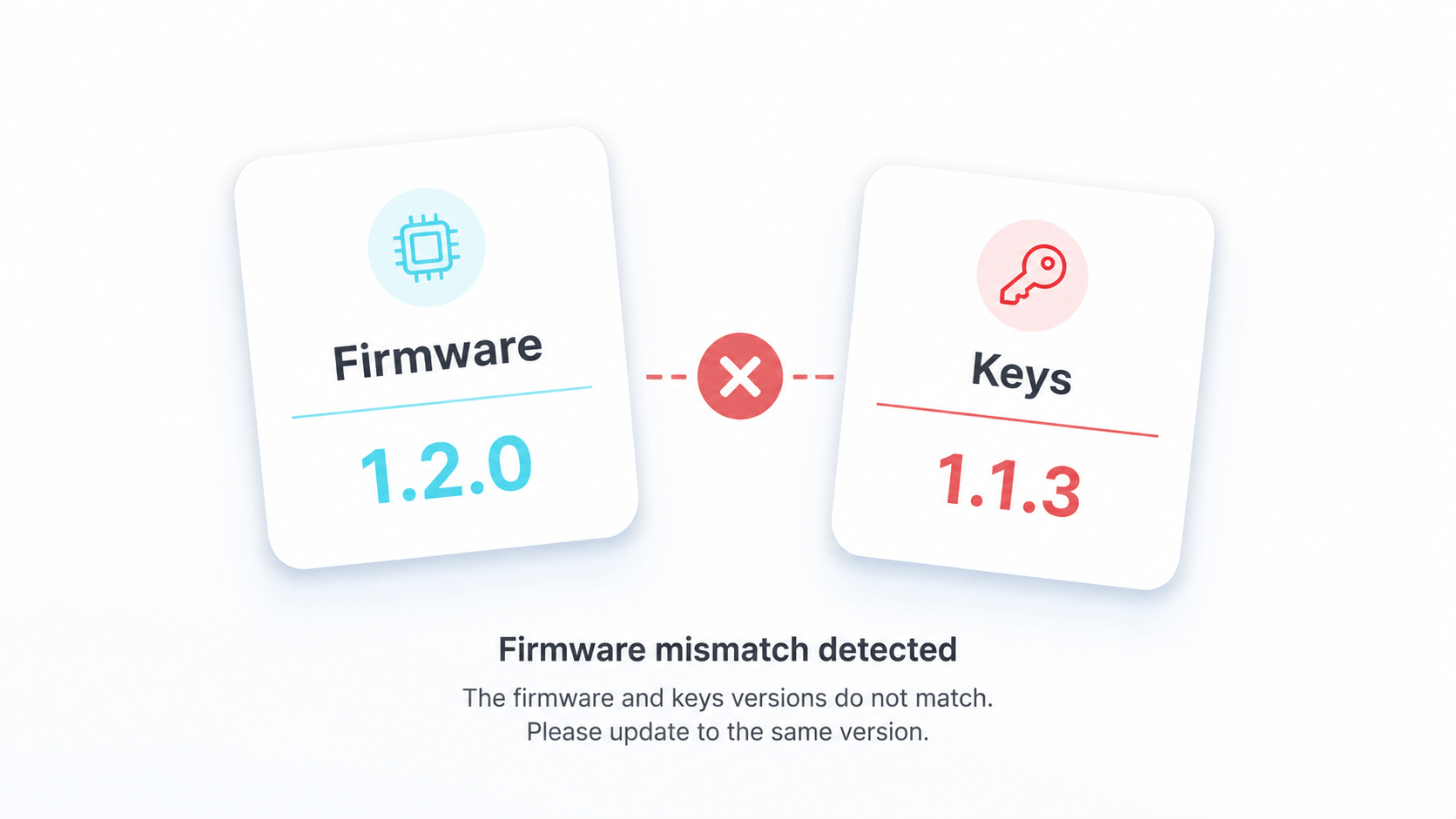
What Firmware Mismatch Means
A firmware mismatch happens when the emulator, installed firmware, keys, or game content do not belong to a compatible version set. The emulator may show a direct firmware error, or it may fail with a black screen, missing services, NCA errors, update install failures, or crashes at launch.
This is why replacing only prod.keys does not always fix the problem. Keys, firmware, content updates, emulator build, and cache can all affect the result.
The practical definition is simple: two or more parts of your setup no longer agree with each other. A newer game update may expect newer system behavior. A newer firmware may expose an emulator regression. A newer emulator build may change folder behavior or cache handling. A stale keys dump may work for one setup but fail in another.
Common Causes
| Cause | What it looks like |
|---|---|
| Firmware installed but keys are stale | Decryption, NCA, or launch failures |
| Keys are present but firmware is missing | Firmware install prompts or missing system services |
| Game update expects newer firmware | Base game launches, update fails |
| Emulator build changed | Same files behave differently after update |
| Cache is stale | Black screen, crash, graphical issue after version change |
| Android device limit | Desktop works, phone black screens or closes app |
Symptoms to Watch For
- A game worked before a firmware update and now fails.
- System applet or Mii-related features are missing.
- Multiple titles fail after one firmware change.
- Only newer game updates fail.
- NCA or header errors appear after installing newer content.
- Android builds launch to black screen after import.
Build a Version Snapshot
Before changing files, write down:
| Field | What to record |
|---|---|
| Emulator | Name, build date, and platform |
| Firmware | Version installed inside the emulator |
| Keys | Date/version of your own keys dump |
| Content | Base game, update version, DLC state |
| Cache | Whether shader/game caches existed before the change |
This snapshot prevents circular troubleshooting where every attempted fix creates a new unknown.
Fix Path
1. Confirm Firmware Is Installed in the Emulator
Downloading firmware is not the same as installing it. Use the emulator's supported install/import workflow, then check that the app reports the expected firmware version.
2. Match Firmware and Keys
Use your own legally dumped keys and keep the dump date in your notes. If a newer firmware or game update requires data your old dump does not cover, errors may appear as decryption or NCA failures.
3. Test One Content Version
Launch the base game without update/DLC if possible. Then add the update. Then add DLC. This separates firmware mismatch from a damaged update package.
4. Clear Cache Carefully
If the failure started after an emulator or firmware update, a stale cache may be involved. Back up saves first. Clear only the relevant shader/game cache, not your save data.
5. Roll Back to a Known-Good Combination
If you kept a version snapshot, roll back to the last working emulator build, firmware version, and content state. Once it works again, change one variable at a time.
Diagnose by Symptom
| Symptom | Start with |
|---|---|
prod.keys not found |
Folder, filename, and permissions |
| NCA bad header | Content integrity, keys/firmware pairing, cache |
| Firmware install fails | Keys detection and firmware archive format |
| Black screen after update | Emulator build, graphics backend, cache, firmware |
| Only one updated game fails | Game update/DLC files and firmware requirement |
| All games fail after firmware change | Roll back firmware and emulator build as a set |
This prevents the most common mistake: treating every launch failure as a firmware problem.
Safe Rollback Workflow
- Back up saves before deleting or resetting anything.
- Restore the last known working firmware version.
- Restore the emulator build or settings used with that firmware.
- Keep the same keys file during the first rollback test.
- Clear only the relevant cache if the emulator documentation or symptom points there.
- Test one known-good title before testing the problem title.
If rollback works, reintroduce one change at a time. If rollback does not work, the problem may be outside firmware, such as content files, permissions, or device behavior.
When It Is Not Firmware
Not every launch failure is a mismatch. If only one file fails, verify the file size and hash if you have a trusted hash. If every game fails immediately, check keys path and emulator permissions first.
Also consider platform-specific limits. Android failures may be caused by GPU driver support, thermal throttling, RAM pressure, or scoped storage. Desktop failures may be caused by graphics backend changes, old shader cache, or a build regression.
Prevention Checklist
- Keep a version snapshot before every firmware update.
- Verify firmware archives before installing.
- Update one variable at a time.
- Keep a known-good test title.
- Record exact error text, not just "it does not work."
- Separate desktop and Android test records.
FAQ
Is firmware mismatch the same as missing keys?
No. Missing keys means the emulator cannot read the expected key file. Firmware mismatch means the detected components do not form a working version set.
Should I always install the newest firmware?
No. Use the version required by your game or emulator workflow. If your setup is stable, newest is not automatically best.
Can clearing cache fix firmware mismatch?
Sometimes, but it should not be the first step for every error. Back up saves and clear only relevant cache after checking keys, firmware, and content version.
Why does Android fail when desktop works?
Android adds storage permissions, GPU drivers, thermal limits, and device performance constraints. The firmware may not be the cause.
Related Guides
Firmware Mismatch 是什么
Firmware mismatch 指模拟器、已安装 firmware、keys 或游戏内容不属于兼容版本组合。模拟器可能直接显示 firmware 错误,也可能表现为黑屏、缺少系统服务、NCA 错误、更新安装失败或启动崩溃。
所以只替换 prod.keys 不一定能解决问题。keys、firmware、内容更新、模拟器构建和缓存都可能影响结果。
常见表现
- 某游戏在 firmware 更新前可用,更新后失败。
- 系统小程序或 Mii 相关功能缺失。
- 一次 firmware 变更后多个标题失败。
- 只有较新的游戏更新失败。
- 安装较新内容后出现 NCA 或 header 错误。
- Android 构建导入后启动黑屏。
建立版本快照
改文件前先记录:
| 字段 | 需要记录什么 |
|---|---|
| 模拟器 | 名称、构建日期和平台 |
| Firmware | 模拟器内安装的版本 |
| Keys | 你自己的 keys 转储日期/版本 |
| 内容 | 本体、更新版本、DLC 状态 |
| 缓存 | 变更前是否已有 shader/game cache |
这份快照可以避免循环排错,因为每次尝试修复都可能制造新的未知变量。
修复路径
1. 确认 Firmware 已安装进模拟器
下载 firmware 不等于安装 firmware。使用模拟器支持的安装/导入流程,然后确认应用报告的 firmware 版本符合预期。
2. 匹配 Firmware 和 Keys
使用你自己合法转储的 keys,并在记录中保留转储日期。如果较新的 firmware 或游戏更新需要旧 keys 不覆盖的数据,错误可能表现为解密或 NCA 失败。
3. 测试单一内容版本
如果可以,先只启动游戏本体。然后添加更新。再添加 DLC。这样能把 firmware mismatch 和损坏的更新包区分开。
4. 谨慎清理缓存
如果失败发生在模拟器或 firmware 更新后,旧缓存可能参与问题。先备份存档。只清理相关 shader/game cache,不要删除存档。
5. 回退到已知可用组合
如果你保留了版本快照,先回退到最后可用的模拟器构建、firmware 版本和内容状态。恢复可用后,再一次只改变一个变量。
什么时候不是 Firmware 问题
并非所有启动失败都是版本不匹配。如果只有一个文件失败,先核对文件大小,有可信哈希时校验哈希。如果所有游戏都立即失败,先检查 keys 路径和模拟器权限。
相关指南
Last updated: 2026-05-12