
Preparation
Before updating firmware, make sure you have these tools and files ready:
- A MicroSD card with enough free space, preferably 32GB or more.
- A computer that can read the MicroSD card.
- The target firmware files from a source you are legally allowed to use.
- Enough Switch battery before starting, preferably above 50%.
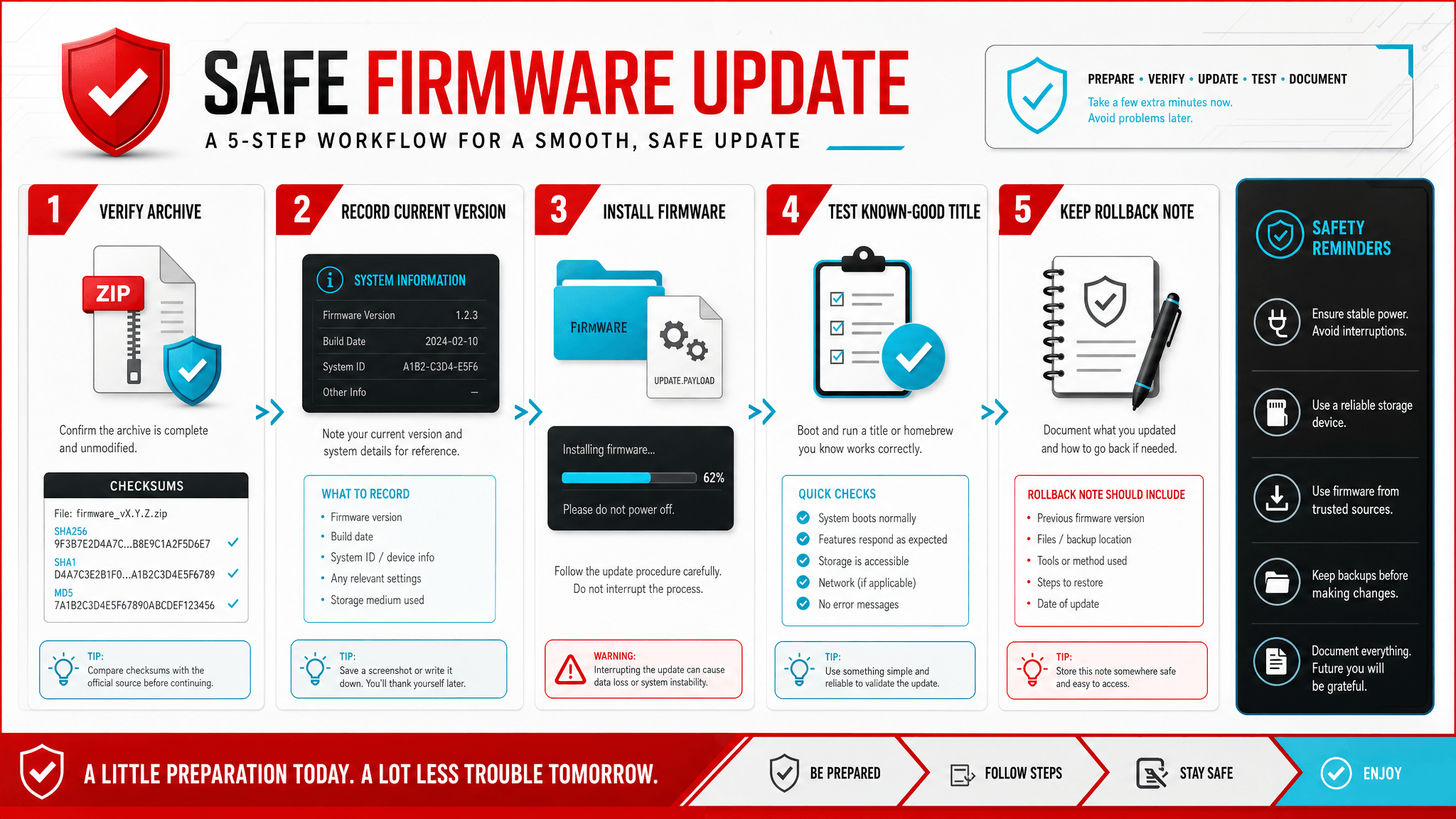
For emulator workflows, also record the emulator build, the current firmware version, and the date of your own keys dump before changing anything. RetroDECK's Ryujinx guidance warns against mixing firmware, keys, and content from different version sets because that can lead to black screens and crashes. Treat the update as a versioned setup, not as a single file replacement.
Before you update, ask why you are updating. Good reasons include a specific game requirement, a documented emulator workflow, a planned compatibility test, or a need to reproduce a problem on a known firmware version. Weak reasons include "newest is always better" or "a forum post said to replace everything." Firmware updates are easier to troubleshoot when the reason is specific.
Create a simple pre-update record:
| Field | Example |
|---|---|
| Current firmware | 21.0.0 |
| Target firmware | 22.1.0 |
| Emulator/build | Ryujinx build/date |
| Keys dump date | Your private record |
| Reason for update | Game update requires newer firmware |
| Rollback available | Yes / no |
Step 1: Download and Extract Firmware
Use the firmware resource table on SwitchFirmware to find the target version and verification values. After downloading, you will usually have a .zip archive or a folder containing firmware files.
Extract the archive and keep the .nca files together in a clearly named folder such as firmware.
Before extracting, verify the archive hash when the table provides MD5 or SHA-256. A bad archive can produce install errors that look like emulator or keys problems. If the hash does not match, do not install it.
After extraction, do not mix files from two firmware versions in the same folder. If you are replacing an older firmware folder, create a new folder with the version in the name so the old files do not remain beside the new ones.
Step 2: Copy Firmware to the SD Card
Insert the MicroSD card into your computer.
- Create a firmware folder at the SD card root, for example
firmware. - Copy all extracted firmware files into that folder.
- Eject the SD card properly and insert it back into the Switch.
Step 3: Install With Your Update Tool
Inside your custom system environment, use the appropriate firmware installation tool, such as Daybreak. If terms like CFW, Atmosphere, and Hekate are still blurry, read Switch CFW, Atmosphere, and Hekate explained before changing console-side files:
- Open Daybreak.
- Choose Install.
- Navigate to the firmware folder.
- Wait for the tool to verify file integrity.
- Choose Continue, then Preserve settings.
- Choose the driver format you need, commonly
FAT32 + exFATcompatibility. - Select Continue to start installation.
Restart after completion and test a known-good setup before changing other variables.
Emulator vs. Console Update Workflows
Console firmware update workflows and emulator firmware install workflows are not the same. Console tools operate inside the console environment and carry device-level risk. Emulator tools install firmware into an emulator-managed user folder. Do not copy steps from one workflow into the other without checking the context.
| Workflow | Main risk |
|---|---|
| Console update | Device state, SD card, power, NAND backup, tool compatibility |
| Emulator firmware install | Keys detection, firmware archive integrity, user folder, emulator build |
This article focuses on safe habits across both contexts, but for emulator users the most important rule is to use the emulator's installer/import flow instead of manually scattering system files.
Emulator Firmware Update Notes
If you are updating firmware for an emulator such as Ryujinx, do not manually scatter firmware files across random folders. Use the emulator's firmware installer when it is available. In Ryujinx-style workflows, the common sequence is:
- Add your own legally dumped
prod.keysandtitle.keys. - Restart the emulator so it can read the keys.
- Use the firmware installer from the emulator menu.
- Confirm the installed firmware version in the emulator settings.
- Launch one known-good title before changing graphics drivers or settings.
This order matters because firmware installation may depend on keys being readable first. If installation fails, check the keys path and file names before assuming the firmware archive is bad.
After-Update Test Plan
Do not immediately test the hardest game in your library. Start with a known-good title that worked before the update. Then test the title or update that motivated the firmware change.
Record:
- Did the emulator report the new firmware version?
- Did the known-good title still launch?
- Did the target title behave differently?
- Did the error text change?
- Did the issue affect desktop, Android, or both?
If the known-good title fails after the update, roll back or troubleshoot the version set. If only the target title fails, focus on that content/update package.
Rollback Checklist
Keep a small note before every update:
- Previous firmware version.
- New firmware version.
- Emulator build and operating system.
- Keys dump date.
- First game tested.
- Result after update.
If a game breaks after updating, roll back the whole version set rather than changing firmware, keys, emulator build, and GPU driver at the same time.
Common Update Mistakes
- Installing firmware before keys are detected in an emulator.
- Forgetting to verify the archive before extraction.
- Mixing extracted files from two firmware versions.
- Updating firmware and emulator build at the same time.
- Testing only on Android and assuming the firmware is the problem.
- Clearing saves while trying to clear cache.
FAQ
Should I always update to the latest firmware?
No. Update when a game, guide, or test plan requires it. If your setup is stable, waiting is often safer.
What should I do if the update fails?
Stop changing files. Record the exact error, verify the archive, confirm keys detection, and roll back to the last known-good version set if needed.
Can I install firmware by copying files manually?
Use the emulator's firmware installer when one exists. Manual copying increases the chance of placing files in the wrong folder or mixing versions.
Why did Android fail after the same firmware worked on desktop?
Android adds storage permission, GPU driver, thermal, and device performance variables. Compare with a desktop baseline before blaming firmware alone.
Further Reading
- Switch firmware download and version history
- Nintendo Switch system update release notes explained
- Switch CFW, Atmosphere, and Hekate explained
- Firmware 21+ and homebrew compatibility
- Fix prod.keys not found errors
Warning: Firmware updates can carry risk. Back up important data and your NAND before proceeding.
准备工作
在开始更新固件之前,请确保你已经准备好了以下工具和文件:
- 一张具有足够剩余空间(建议 32GB 以上)的 MicroSD 卡。
- 一台支持读取 MicroSD 卡的电脑。
- 最新的系统固件文件(可以在首页的国际版或中国版资源清单中下载对应的版本)。
- 确保 Switch 电量充足(建议 50% 以上)。
如果你是在模拟器工作流中更新 firmware,还要在开始前记录模拟器构建版本、当前 firmware 版本,以及你自己的 keys 转储日期。RetroDECK 的 Ryujinx 指南明确提醒不要混用不同版本组合的 firmware、keys 和内容文件,因为这可能导致黑屏或崩溃。把更新当成一次版本组合变更,而不是单个文件替换。
第一步:下载并解压固件
首先,请访问首页下载最新的 Excel 资源清单,获取你需要下载的固件版本链接。下载完成后,你通常会得到一个 .zip 压缩包。
将此压缩包解压后,你会看到多个 .nca 文件,请把它们放到一个名为 firmware 的新建文件夹中。
第二步:将固件复制到 SD 卡
将你的 MicroSD 卡插入电脑。
- 在 SD 卡根目录下,创建一个用于存放固件的文件夹(比如命名为
firmware)。 - 将你刚刚解压的所有文件,全部复制到 SD 卡的这个文件夹中。
- 弹出 SD 卡,并将其插回 Switch 主机。
第三步:使用工具更新
进入你的自定义系统(如 Atmosphere),运行相应的固件刷写工具(例如 Daybreak)。如果你对 CFW、Atmosphere、Hekate 这些概念还不够清楚,先看 Switch CFW、Atmosphere 与 Hekate 解释 再改动主机侧文件:
- 打开 Daybreak。
- 选择 Install。
- 导航到你刚才放置固件的文件夹。
- 等待工具验证文件完整性。
- 选择 Continue 然后选择 Preserve settings(保留设置)。
- 选择你的驱动格式(通常推荐
FAT32 + exFAT兼容版)。 - 点击 Continue 开始安装。
完成后重启系统,即可享受最新的固件体验!
警告: 刷机和更新固件存在一定风险,请务必提前备份好重要数据和
nand!
模拟器 Firmware 更新注意事项
如果你是为 Ryujinx 等模拟器更新 firmware,不要手动把 firmware 文件散放到随机目录。只要模拟器提供安装入口,就优先使用模拟器内置安装器。Ryujinx 风格工作流通常按这个顺序:
- 添加你自己合法转储的
prod.keys和title.keys。 - 重启模拟器,让它重新读取 keys。
- 从模拟器菜单使用 firmware 安装器。
- 在模拟器设置中确认已安装的 firmware 版本。
- 在修改图形驱动或设置前,先启动一个已知可用的游戏。
这个顺序很重要,因为 firmware 安装可能依赖 keys 先被正确读取。如果安装失败,先检查 keys 路径和文件名,不要马上判断 firmware 压缩包损坏。
回退清单
每次更新前保留一条小记录:
- 旧 firmware 版本。
- 新 firmware 版本。
- 模拟器构建和操作系统。
- keys 转储日期。
- 第一个测试游戏。
- 更新后的结果。
如果游戏在更新后出问题,回退整套版本组合,不要同时更换 firmware、keys、模拟器构建和 GPU 驱动。
继续阅读
Last updated: 2026-05-11